
IT Services – M365 Self-Migration Pre-Requisites
Get ready and move to Microsoft 365
Follow these seven steps to move yourself to Microsoft 365. Most take a few minutes. Moving your emails (step 6) takes longer, depending on how many you have.
Pre-Migration: Check if you can get into your personal email
During setup you may receive verification emails. Password resets and account checks may also rely on your personal email, and some migration steps may need access to accounts you already have.
Only work emails belong in your new work mailbox. Personal emails stay in your personal account. Look through your personal mailbox now and decide which of these fits you:
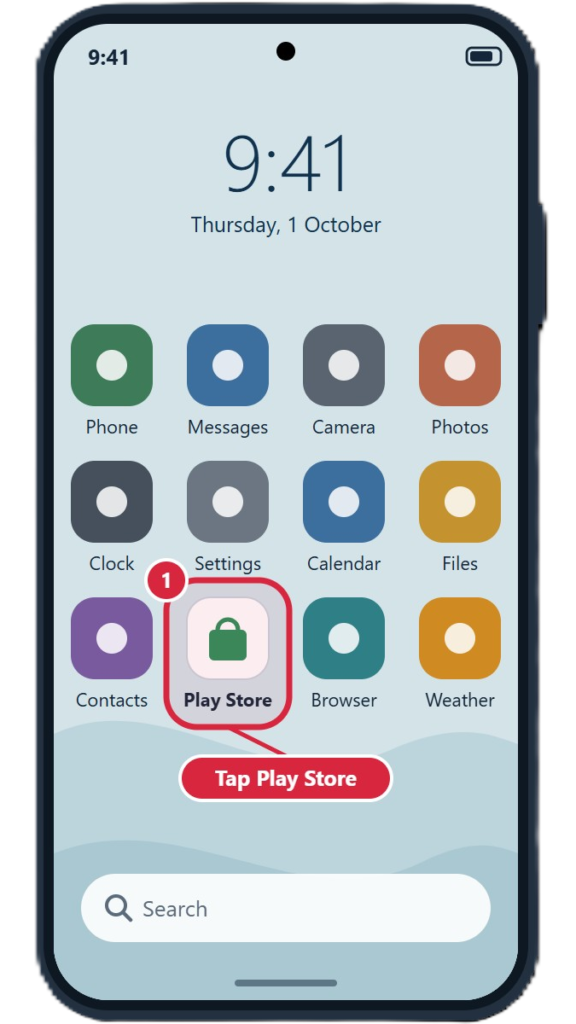
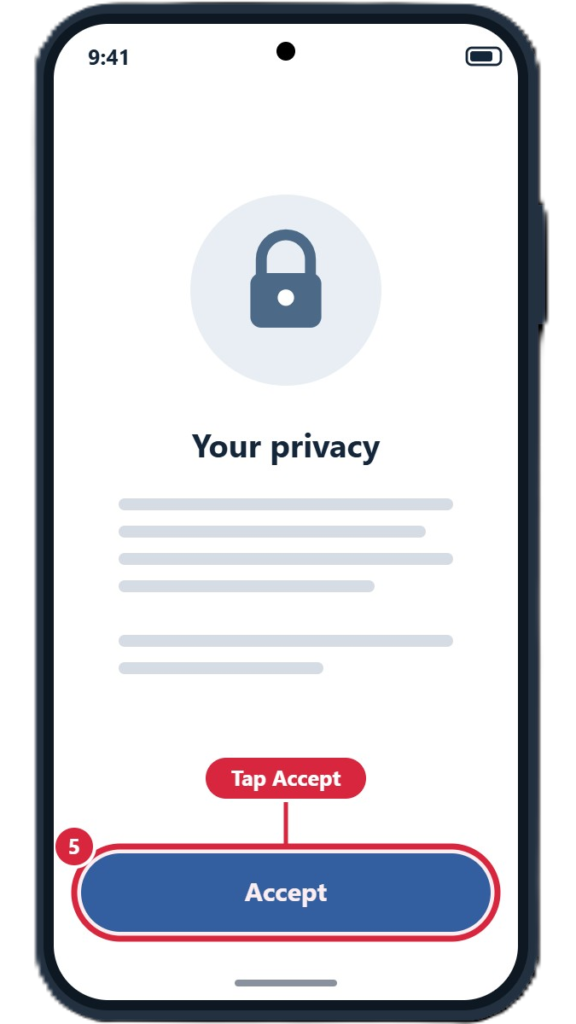
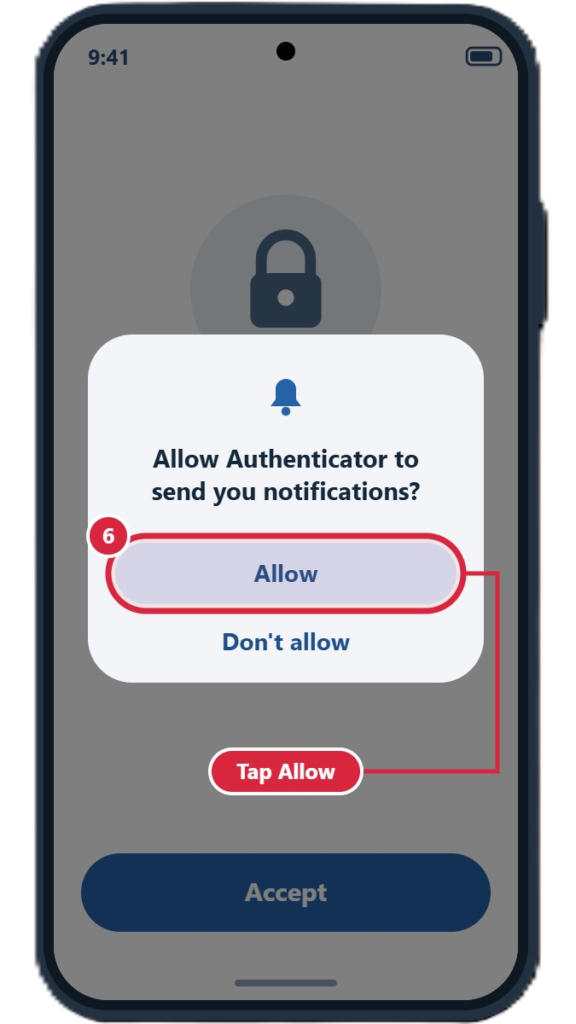
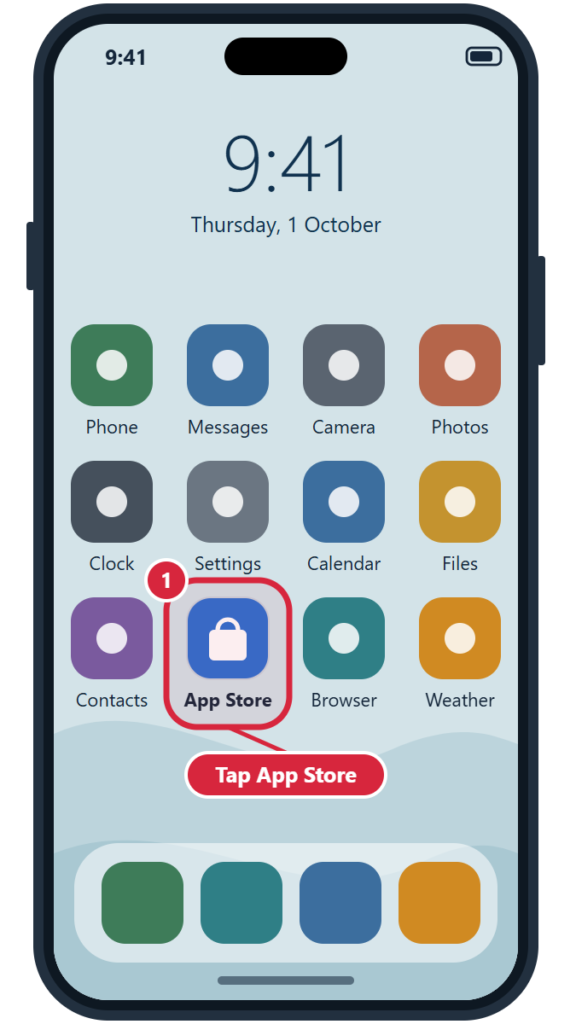
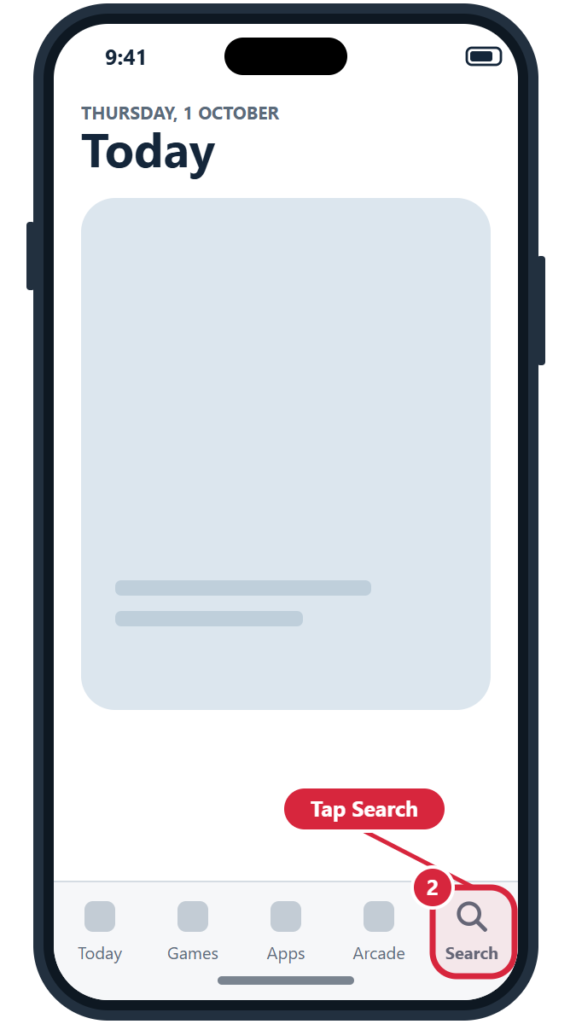
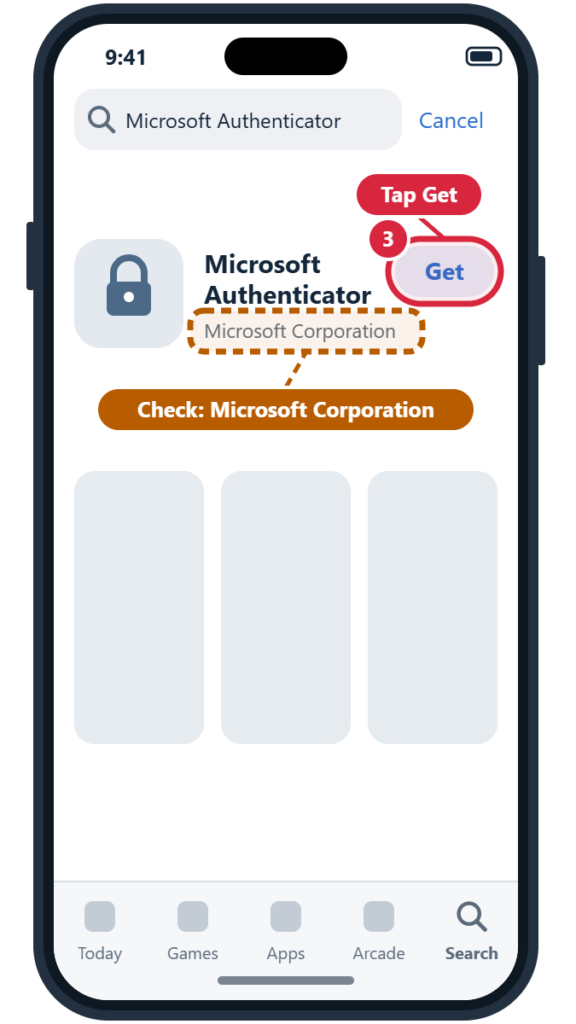
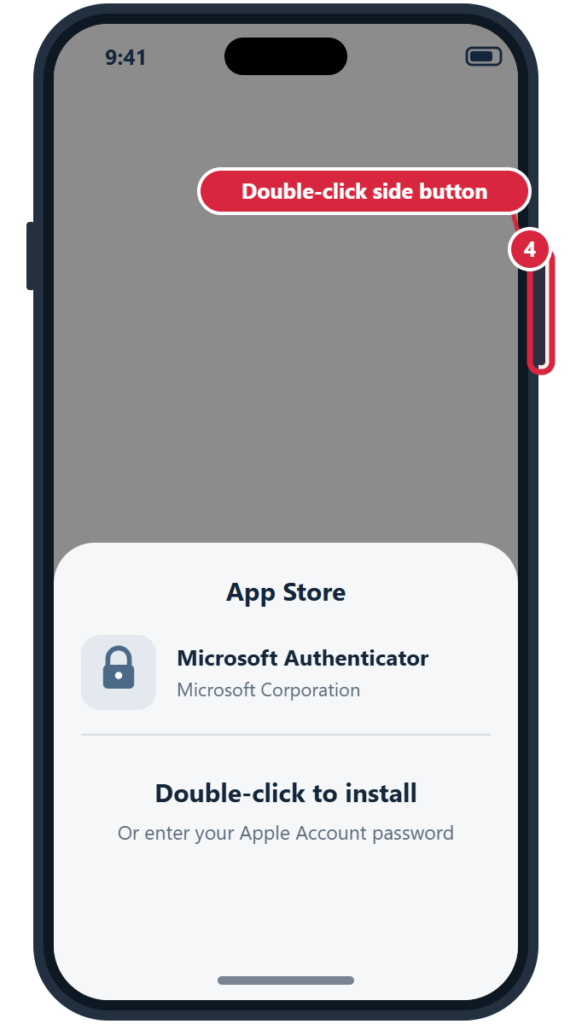
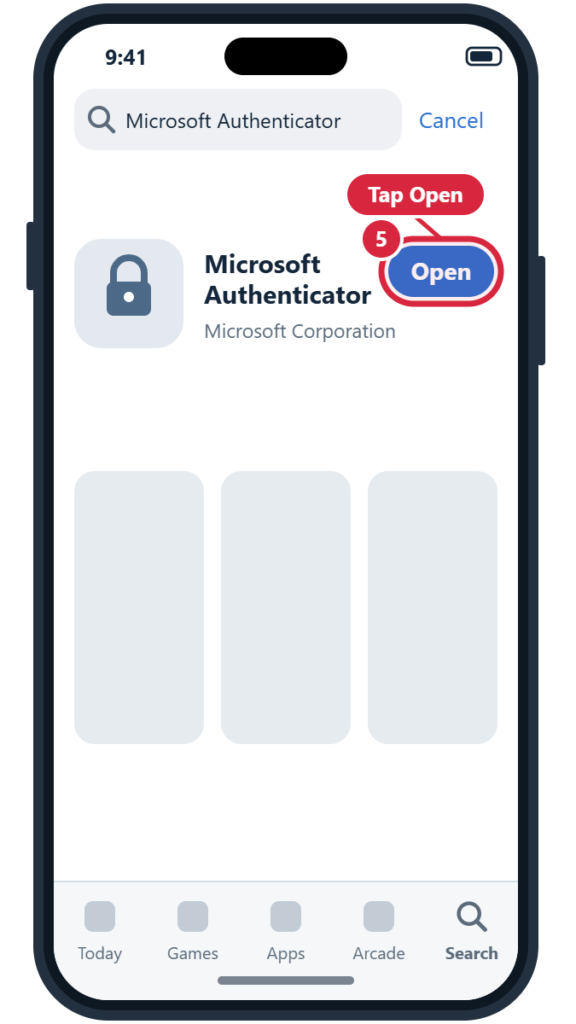
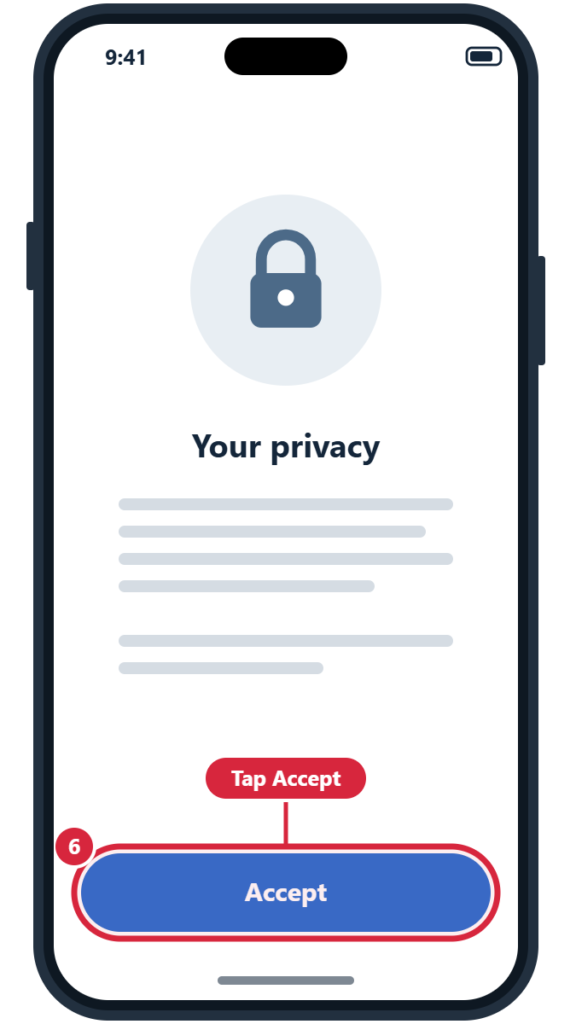
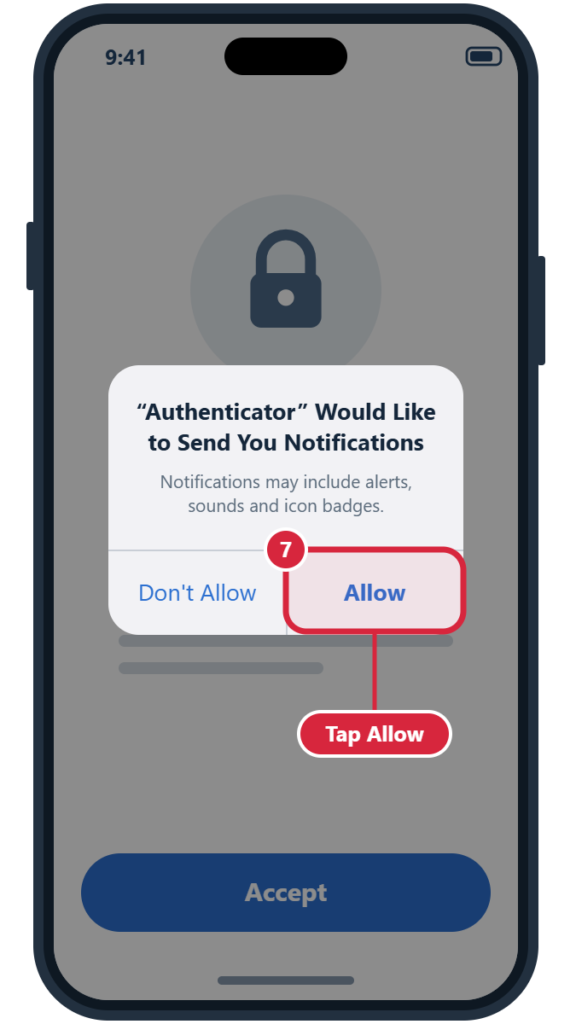
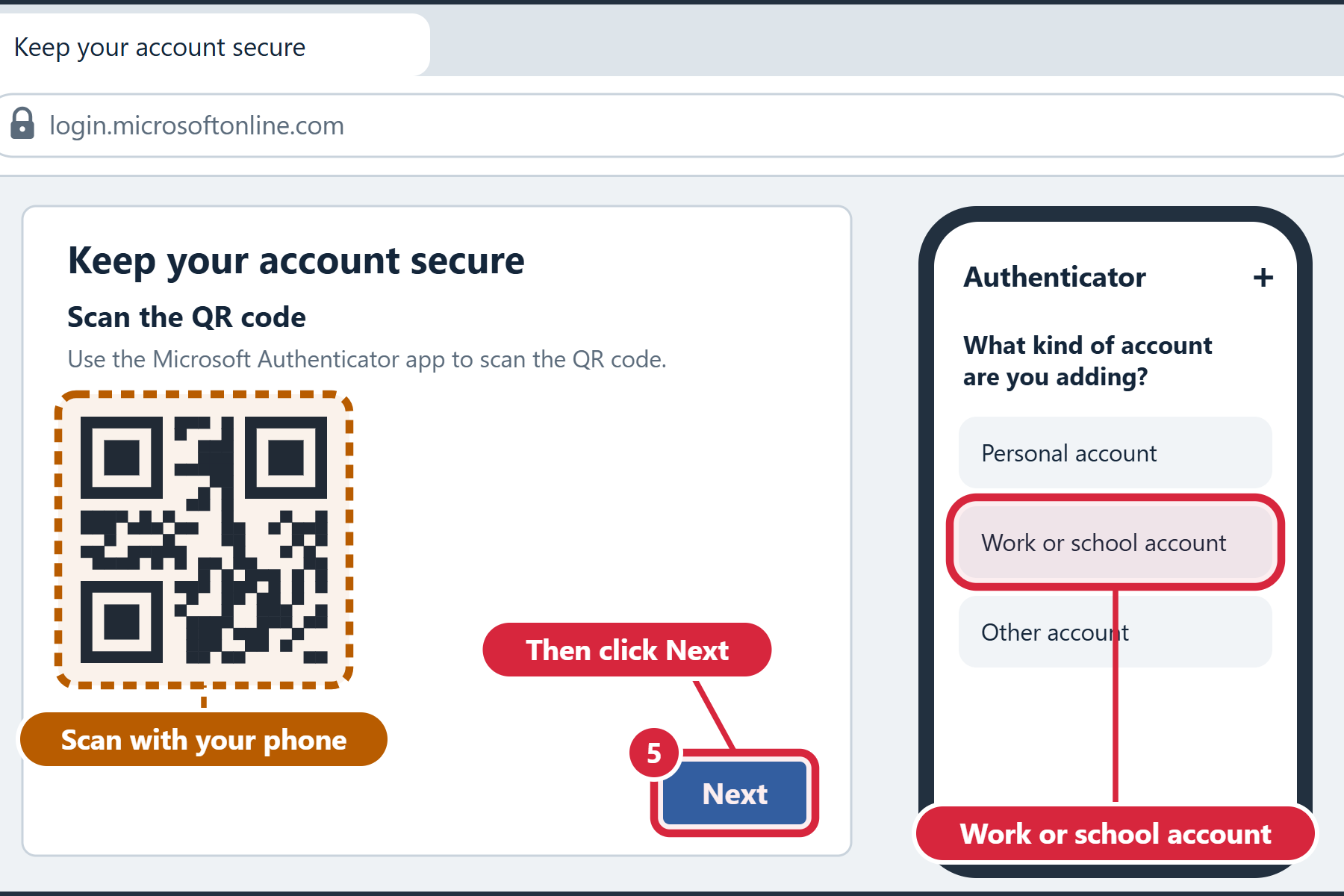
Microsoft recommends Authenticator as the main way to sign in. You’ll use it to approve sign-ins to your new work account, and it may be required to use Microsoft work apps.
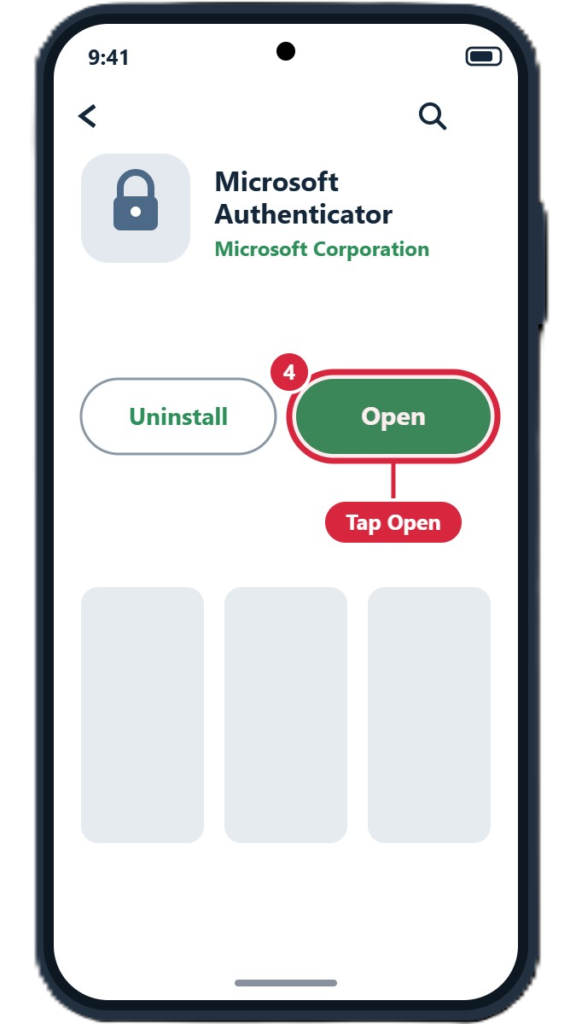
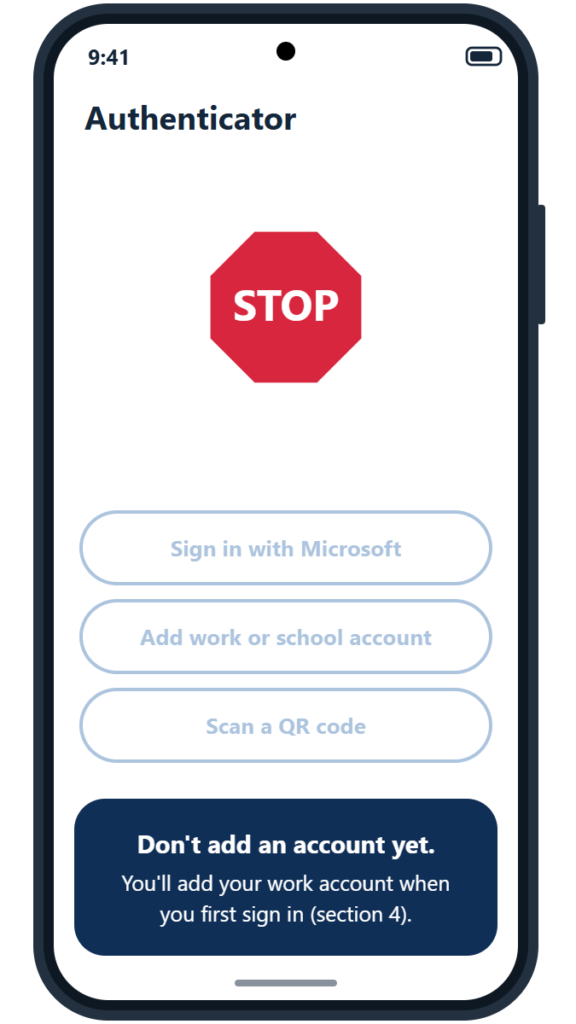
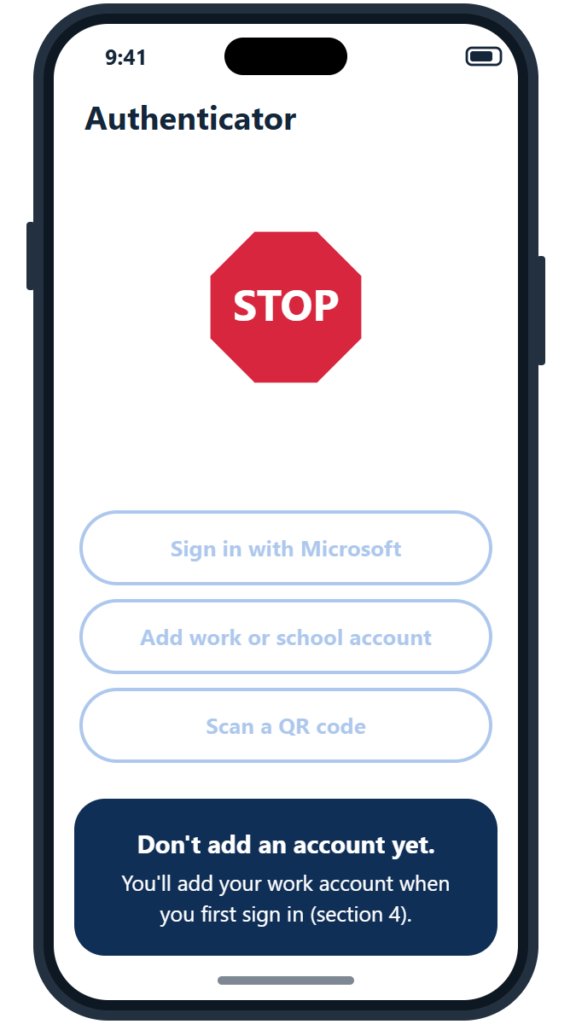
Install it now, but don’t add any accounts yet. You’ll add your new work account when you first sign in (Step 4).
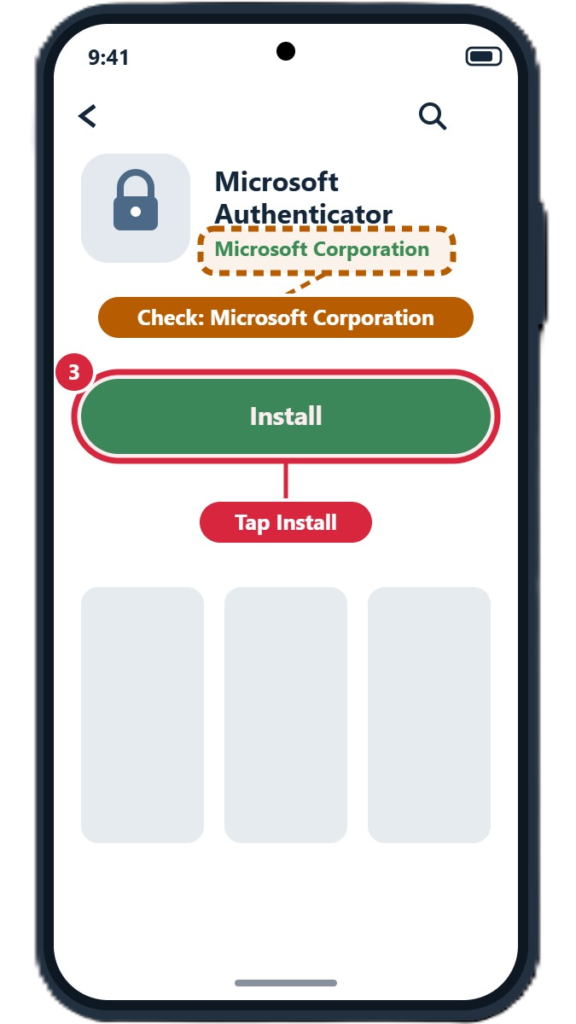
Look for: Microsoft Authenticator
Publisher: Microsoft Corporation

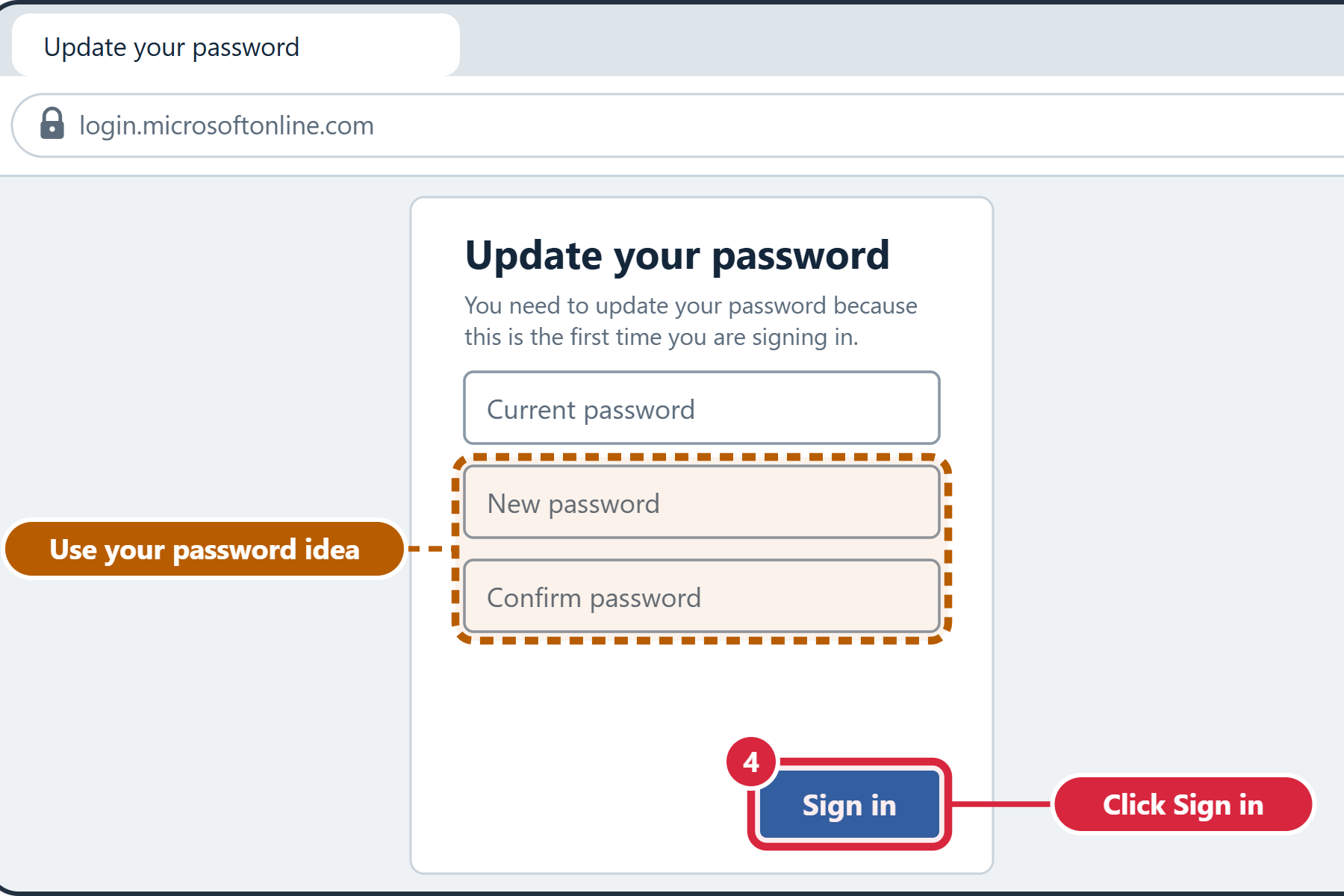
You’ll create a new password when you first sign in (Step 4). Thinking of one now saves time and leads to a stronger password.
Your password must
Avoid
Loading password generator…
This check runs only on this page. Nothing you type is saved or sent anywhere. It can’t know your name or family names, so avoid those yourself. IT Services may adjust these rules, and you’ll be told if anything changes.
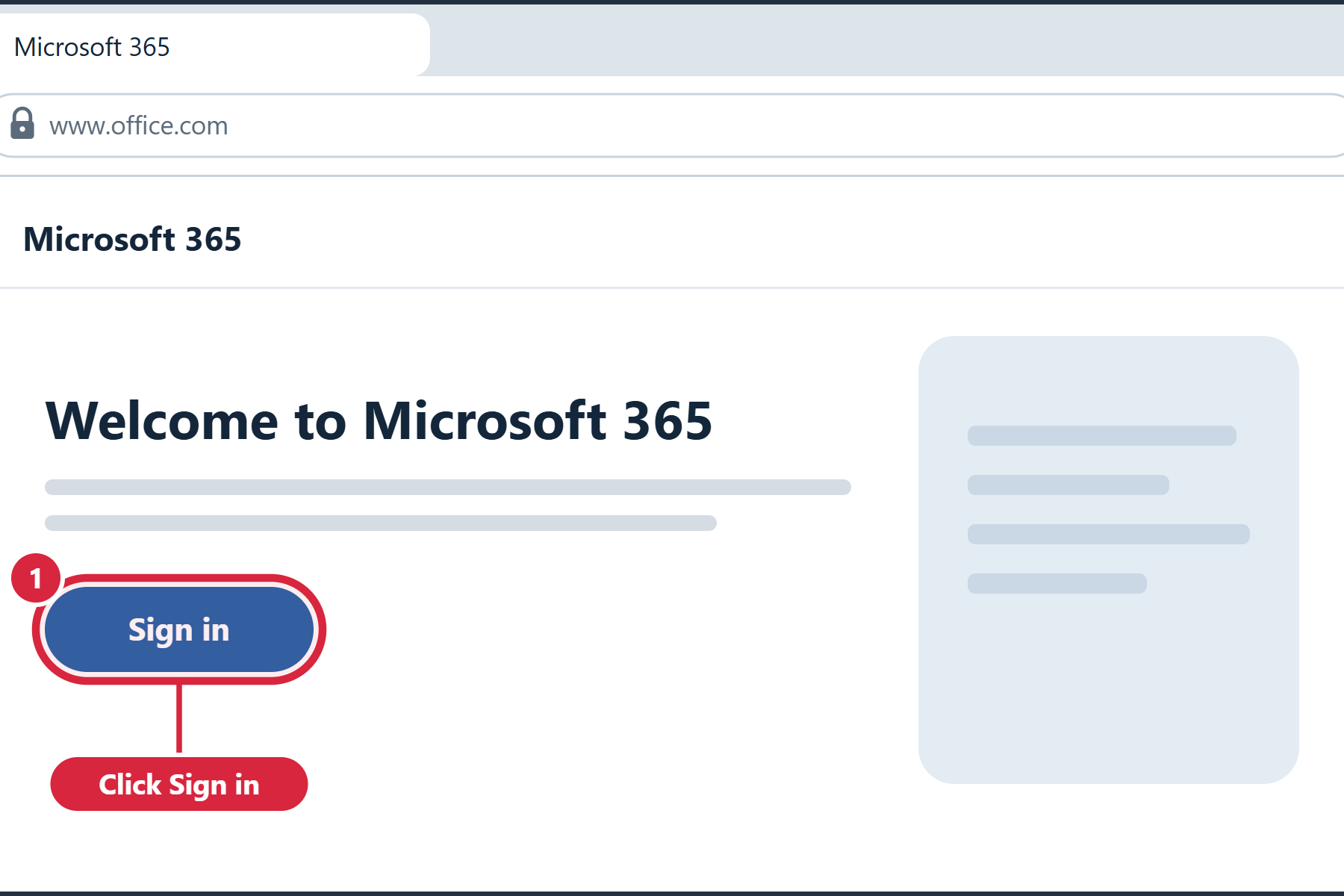
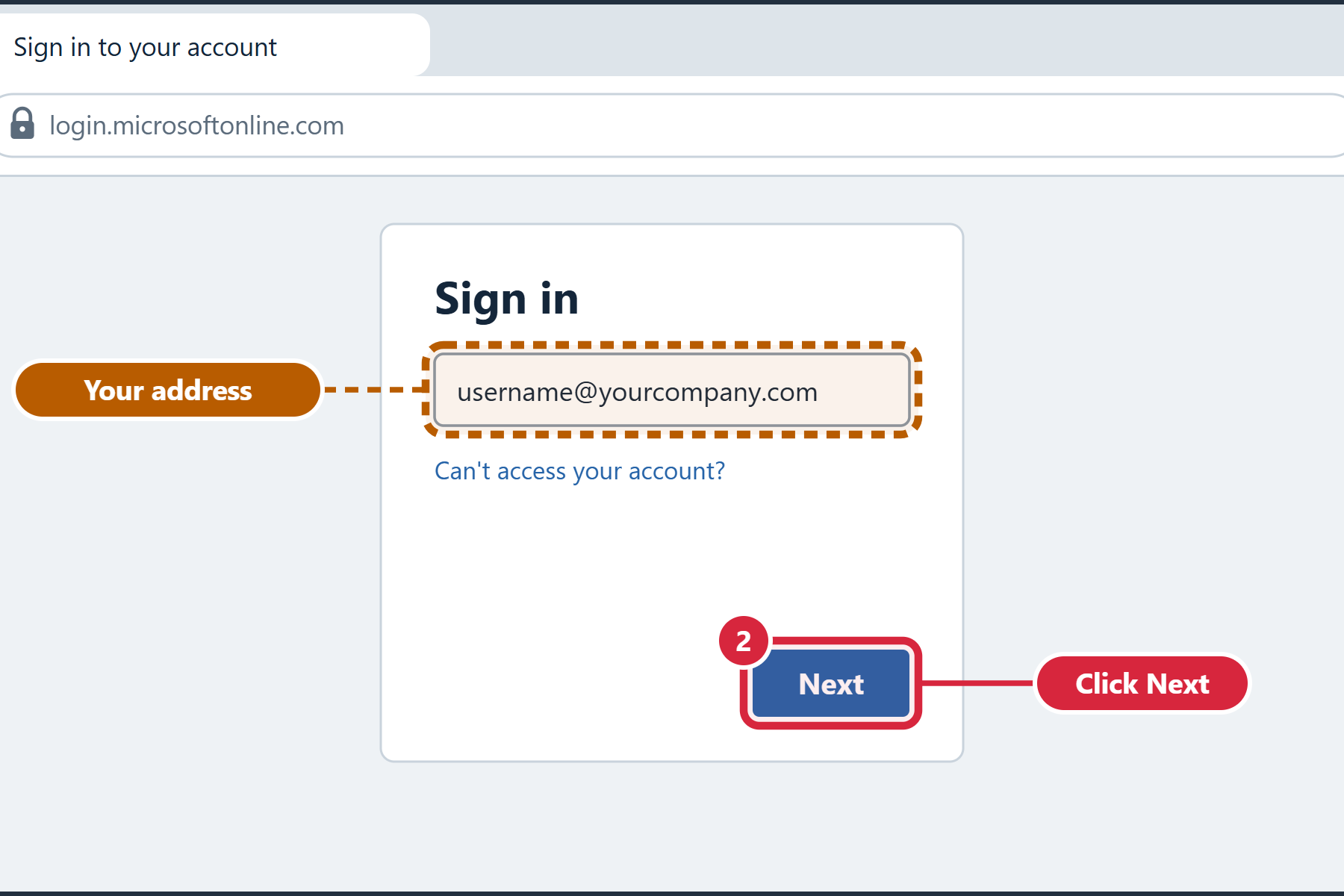
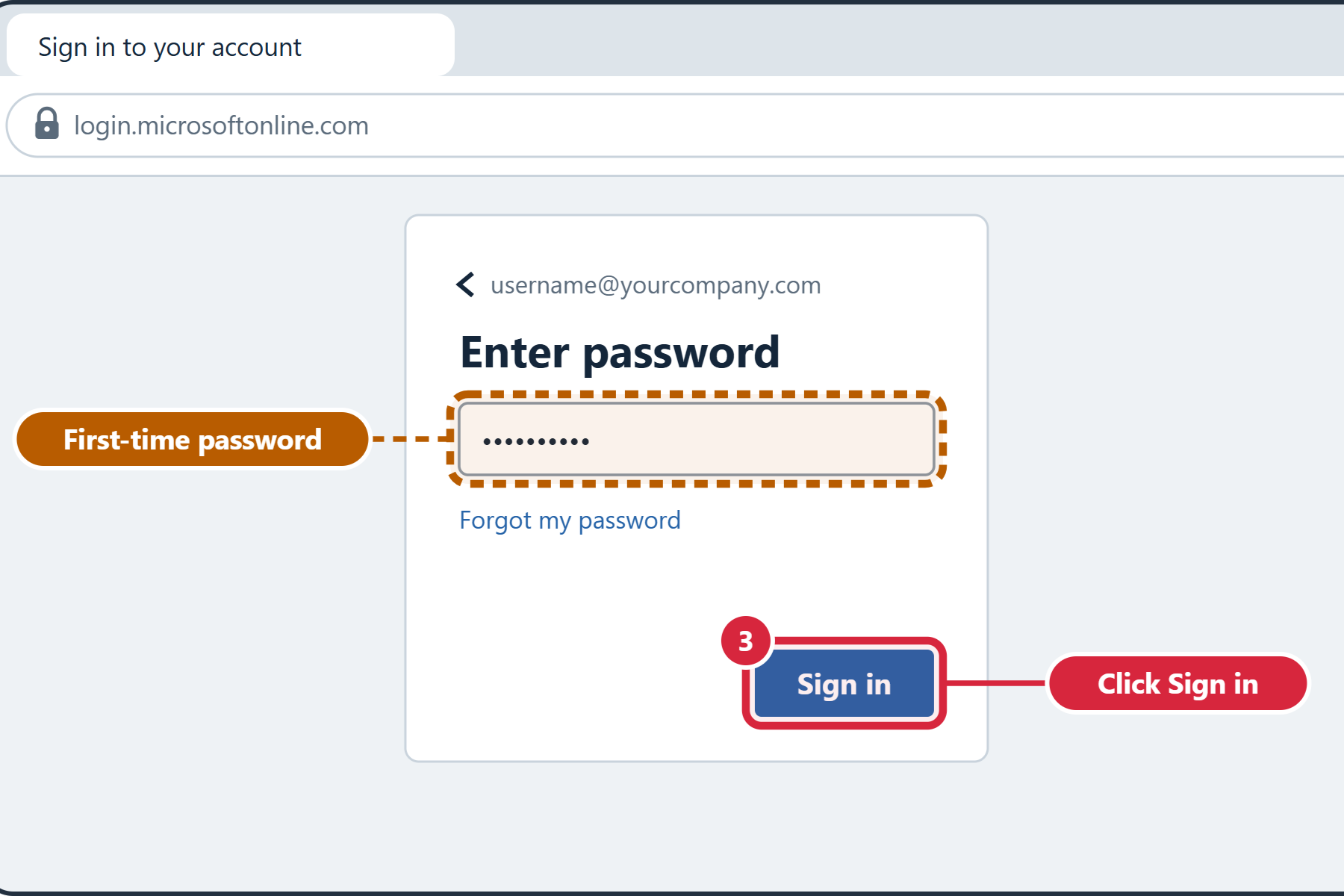
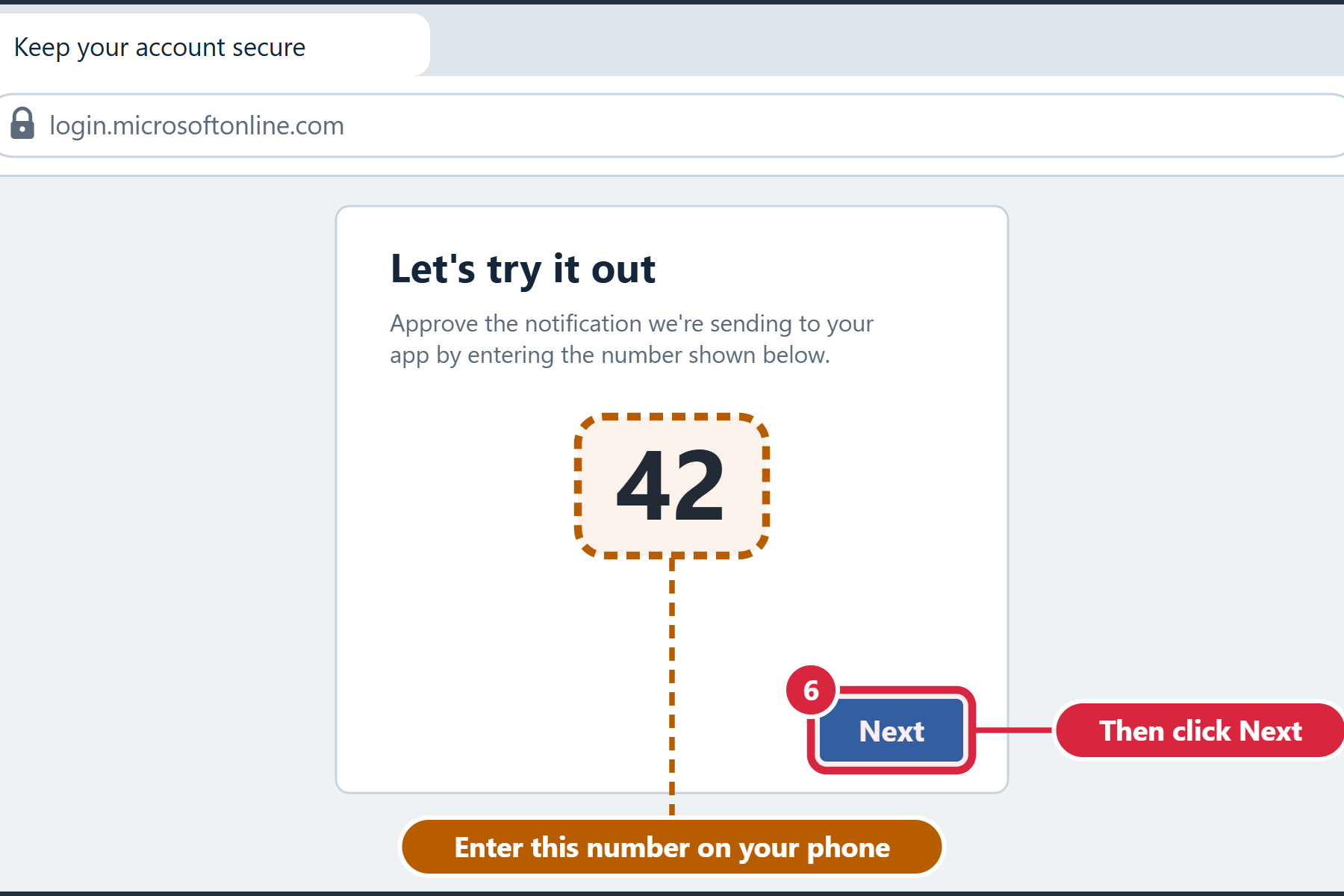
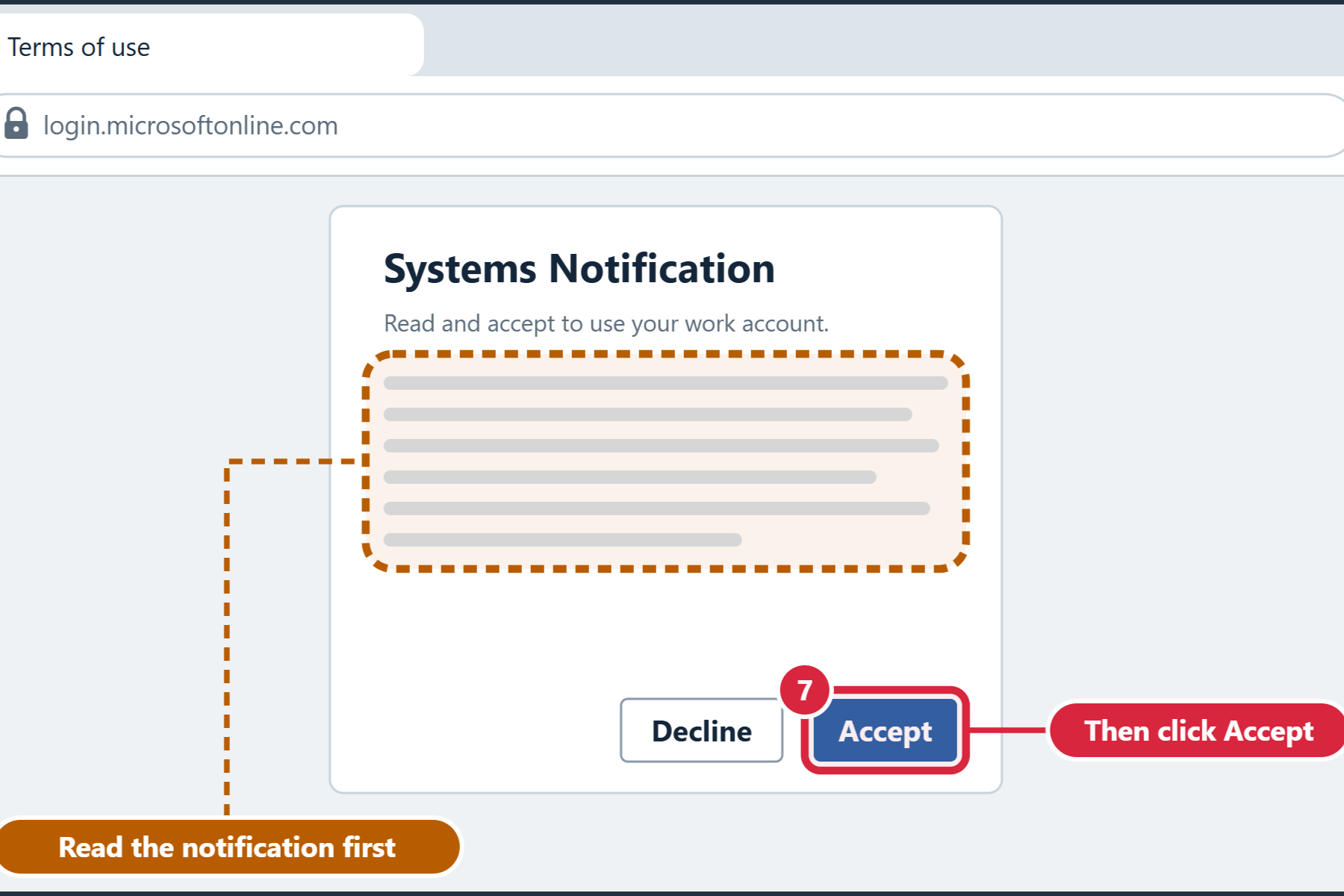
Signing in for the first time sets up your password and Authenticator. Do this before you install the apps or move anything: the next steps need your new account.
Do this on a laptop or desktop computer. It’s easier than on a phone.
Login Browser Steps
Everything you need to activate your new account, step by step.
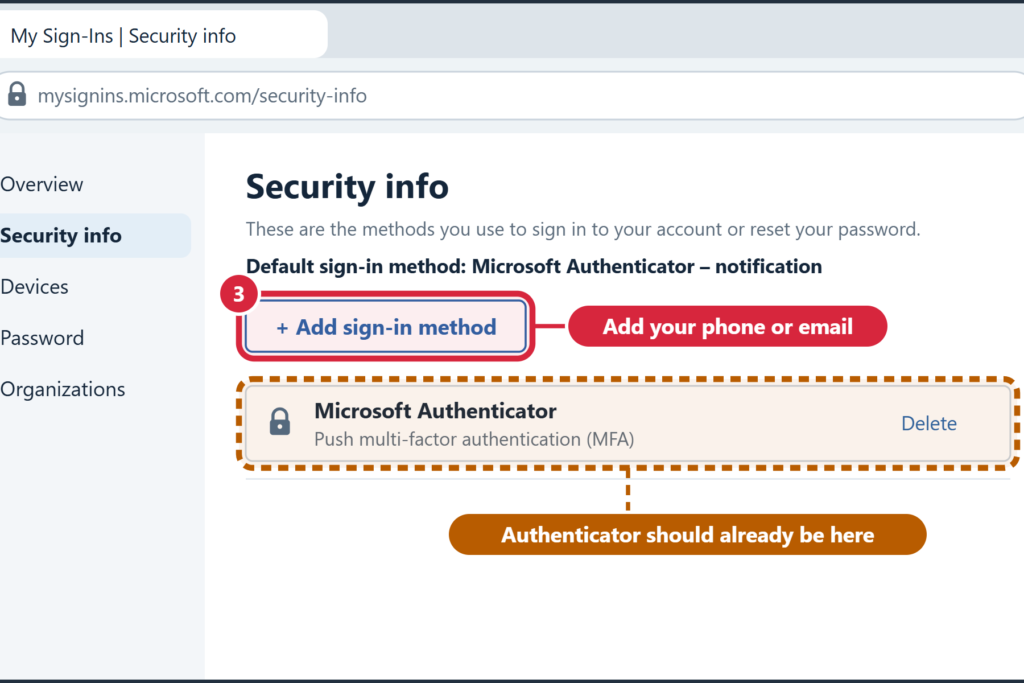
Then set up a password reset
Self-service password reset lets you reset a forgotten password yourself, any time, without waiting for IT Services. It takes about two minutes, and you’re already signed in.
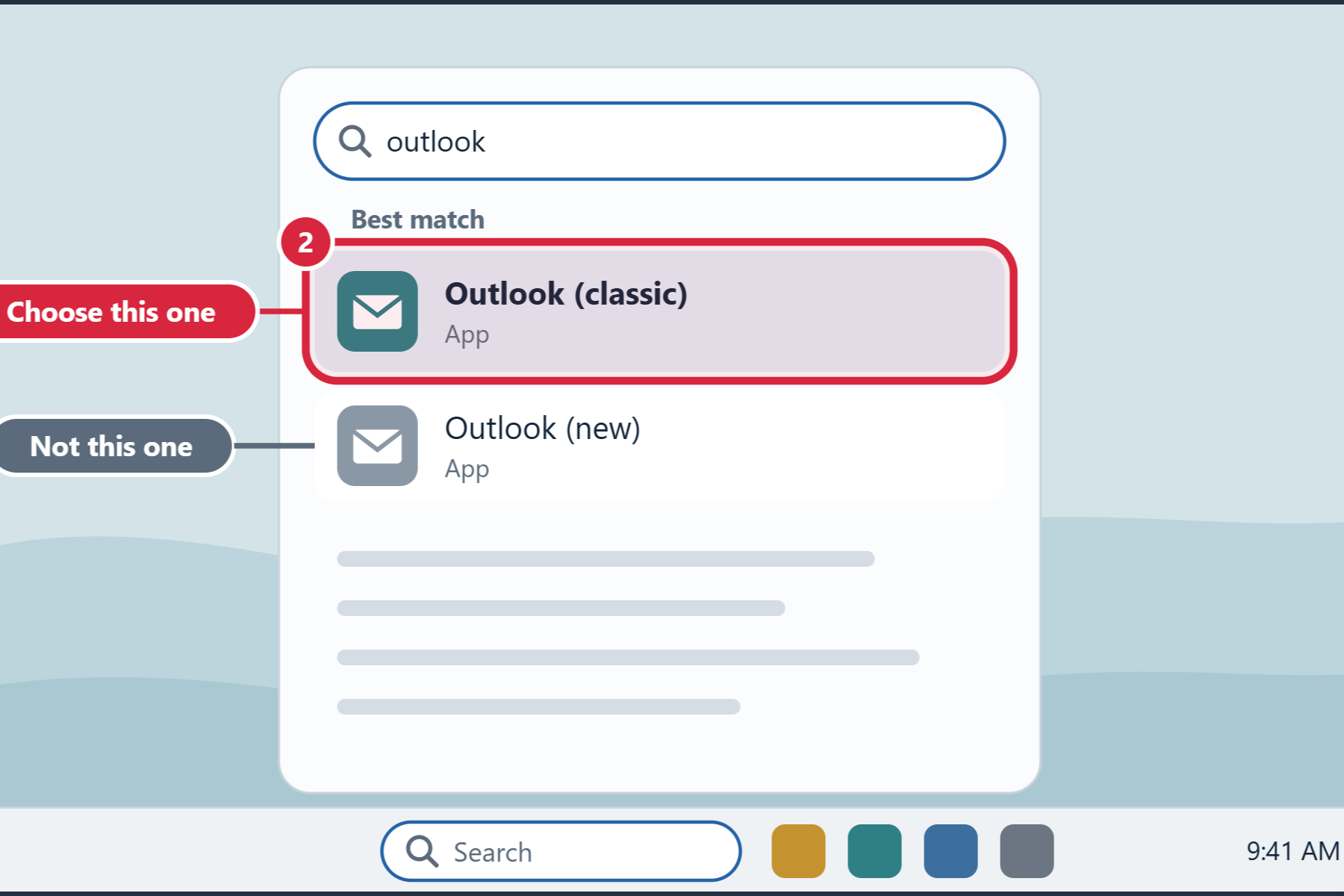
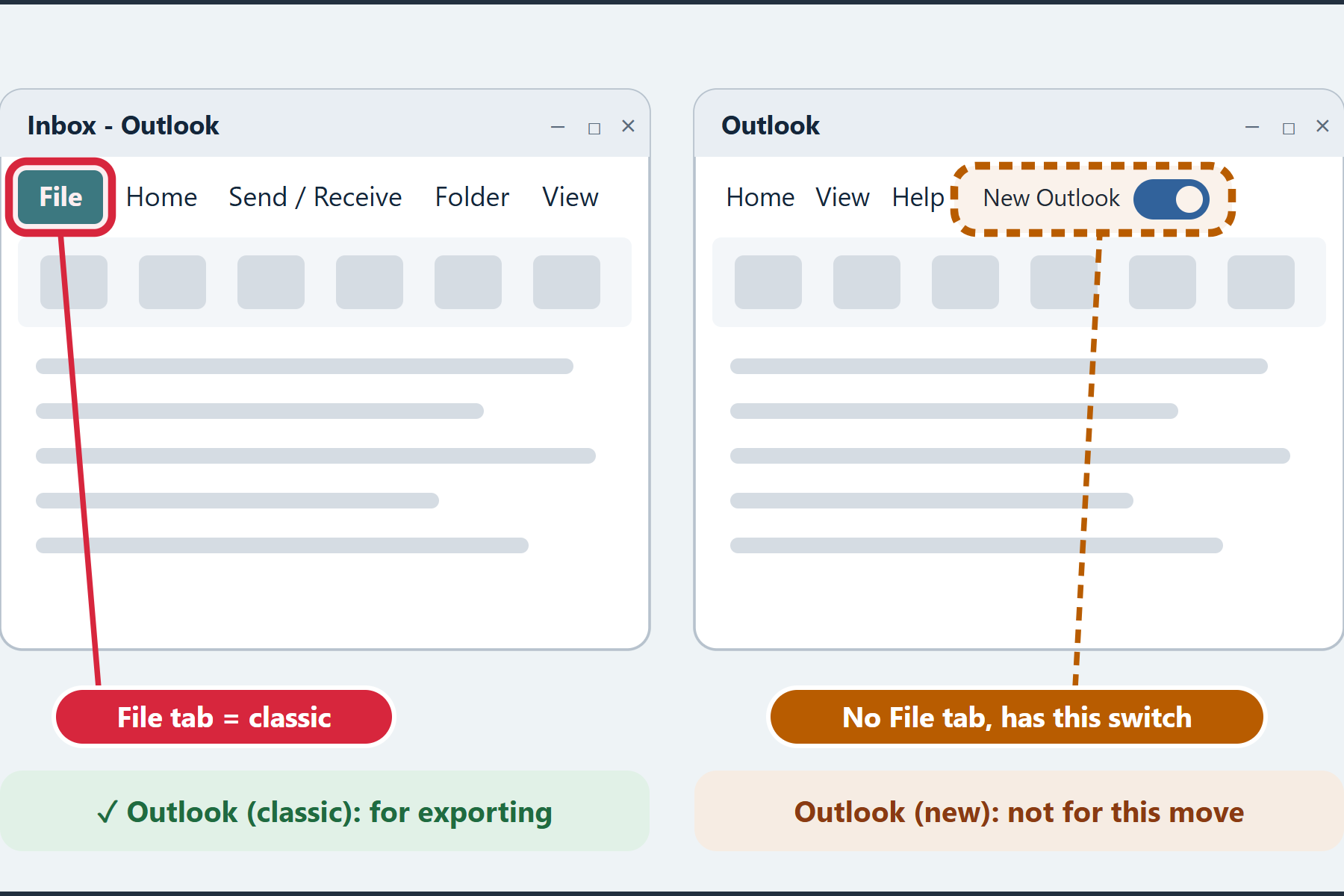
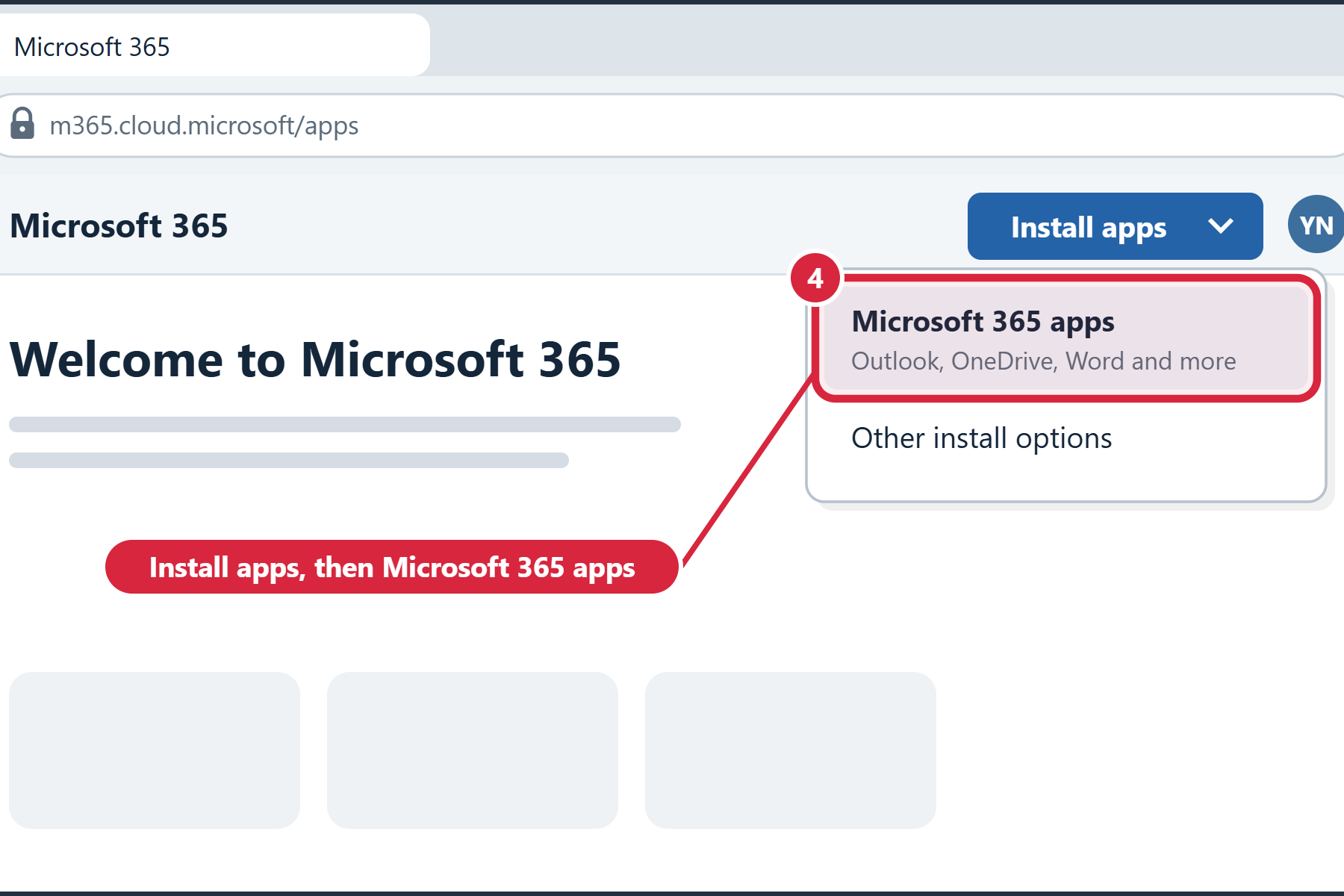
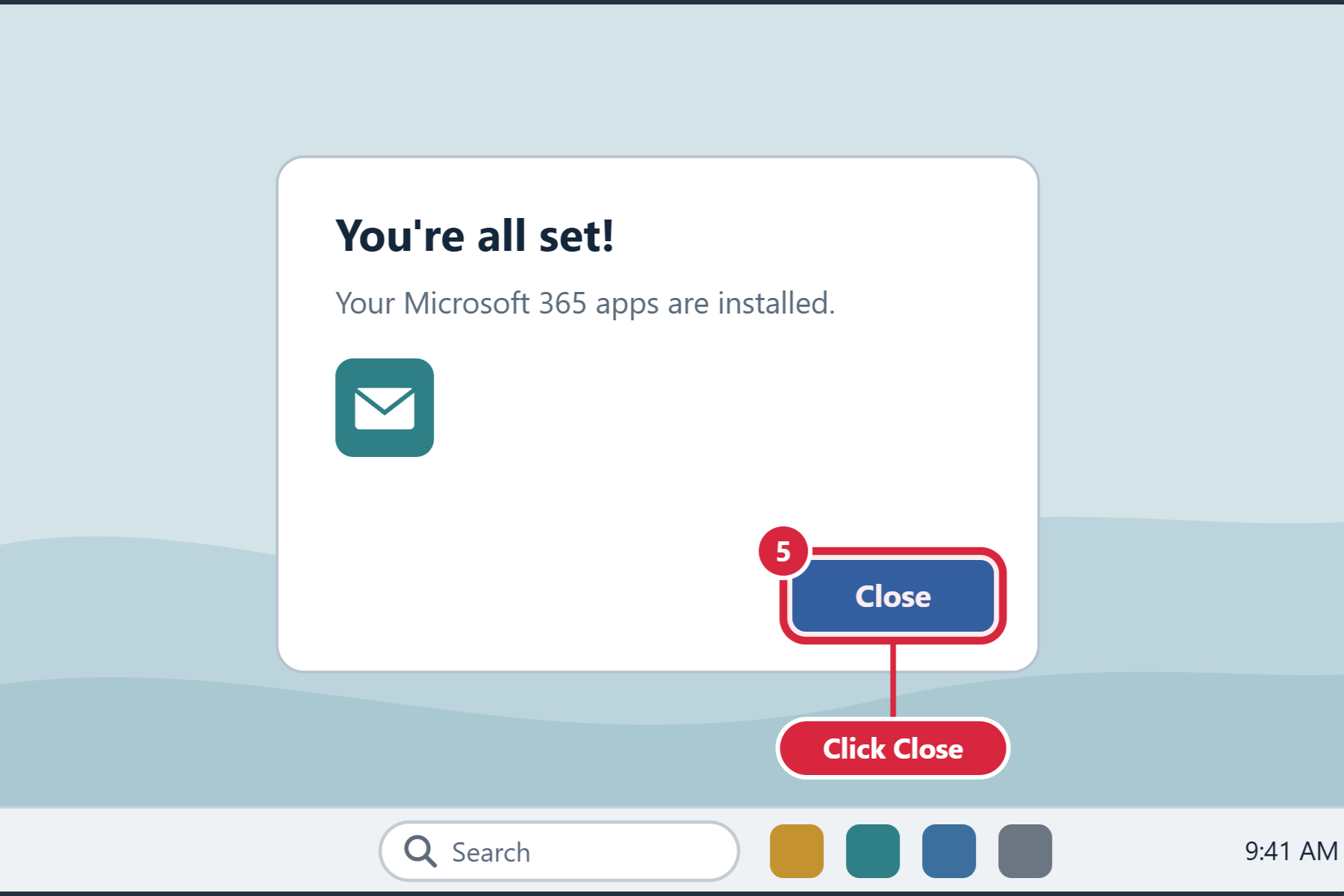
Now that you’re signed in, install the Microsoft 365 apps from your work account. They include Outlook (classic), which you’ll use to move your emails (Step 6), and OneDrive, where your own work files will live (Step 7). Installing them from your work account sets them up for it from the start.
Use the computer you’ll do the move on. Installing takes several minutes, so plug it in first.
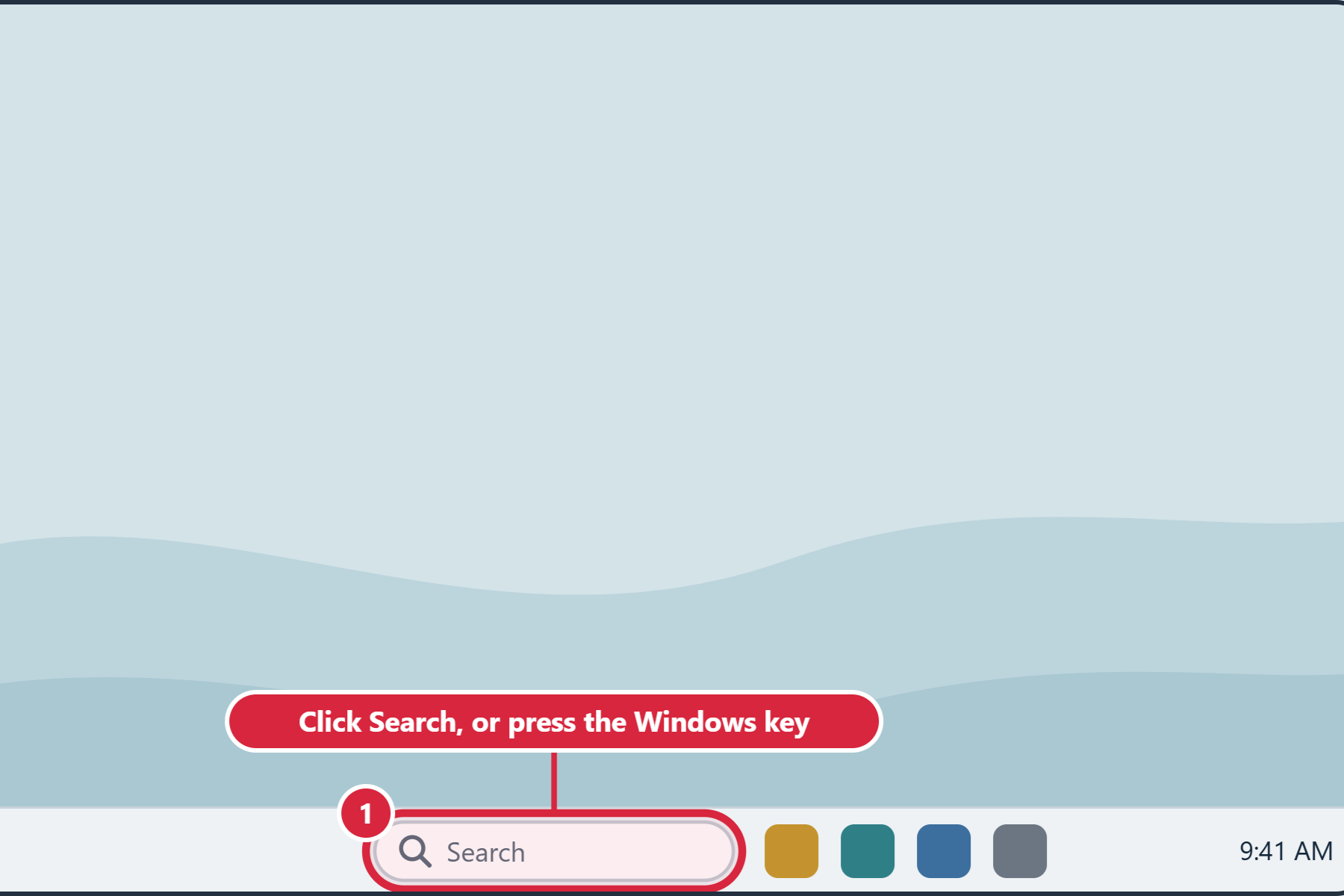
Installing M365 Office Apps
Step by step guide to installing M365 Office Apps
Then check OneDrive is there
OneDrive comes with Windows 10 and 11 and with the Microsoft 365 apps, so it’s usually already there. The OneDrive app adds a OneDrive folder to File Explorer. You’ll copy your work files into it, and it keeps them backed up in Microsoft 365. It’s much better than the web browser for lots of files.
Copy your work emails from your personal account (Gmail, Yahoo, Outlook.com or Hotmail) into your new work mailbox. Choose the option that matches what you have.
Allow time. A few hundred emails take minutes; thousands can take an hour or more. Plug your computer in before you start.
Option A: Outlook (classic) on Windows
Step 1: Add both accounts to Outlook (classic)
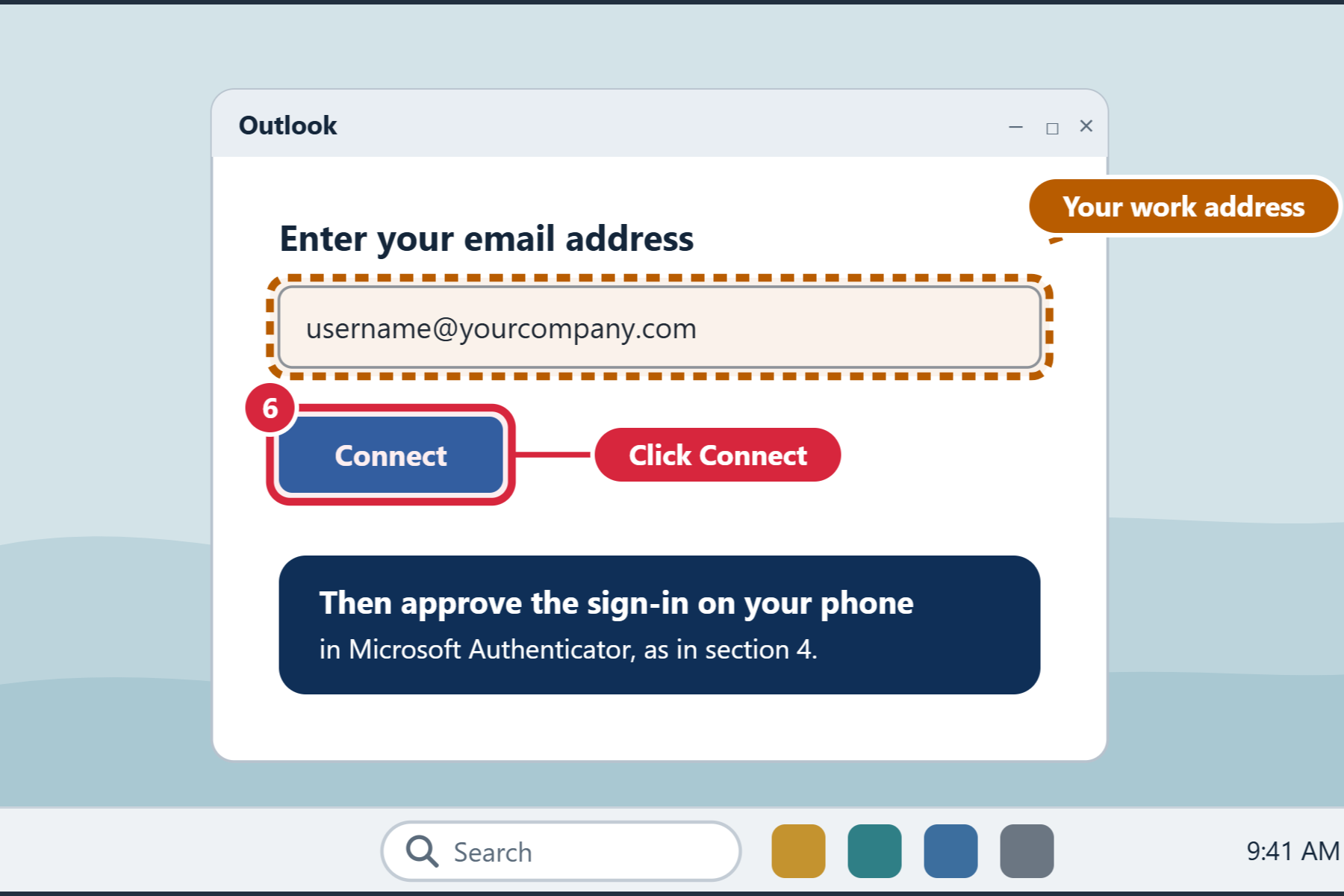
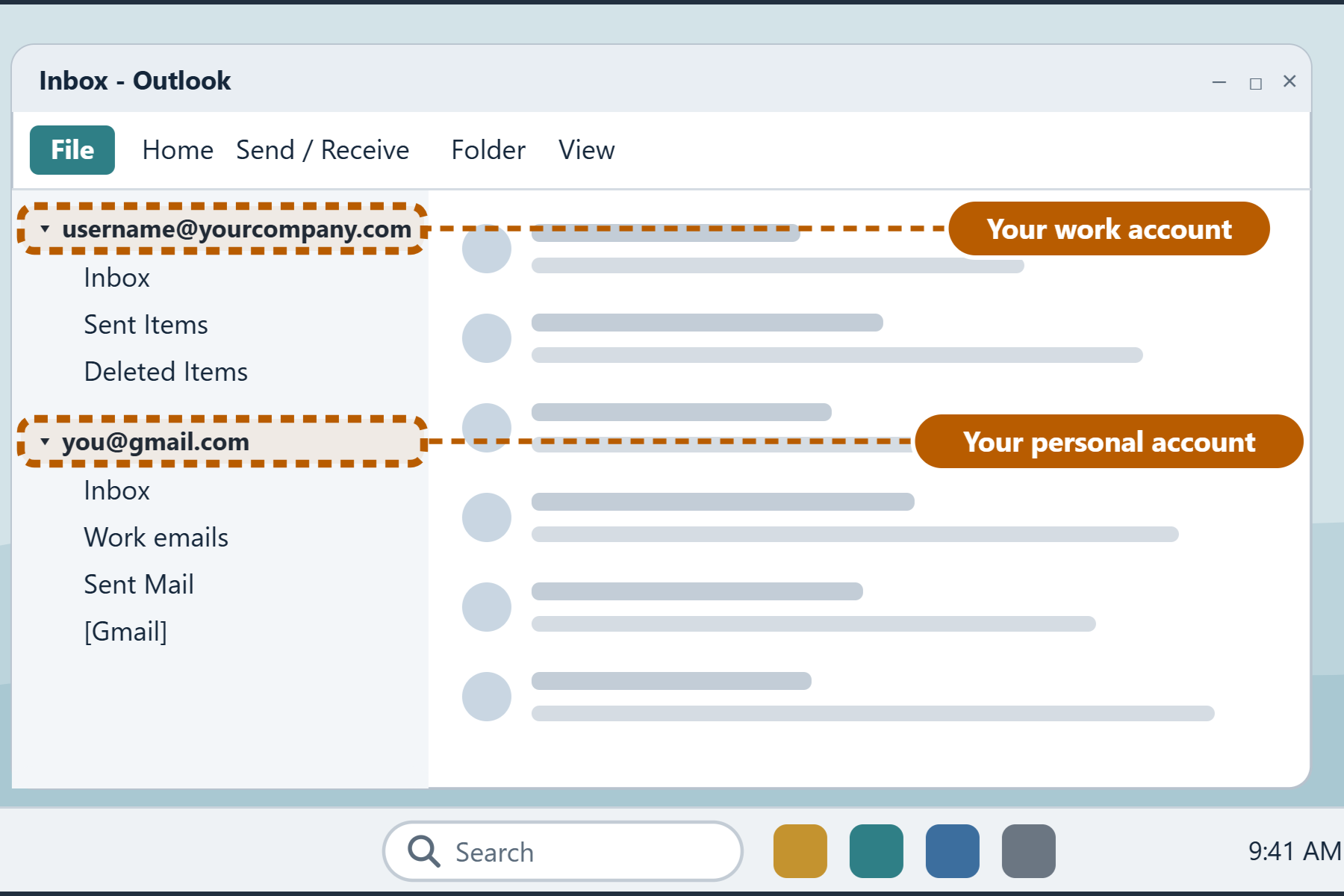
Open Outlook (classic). You signed in with your work address, username@yourcompany.com, in Step 5. Now add your personal account:
Step 2: Move your emails
Choose the way that fits your personal mailbox. You worked out which one in Step 1.
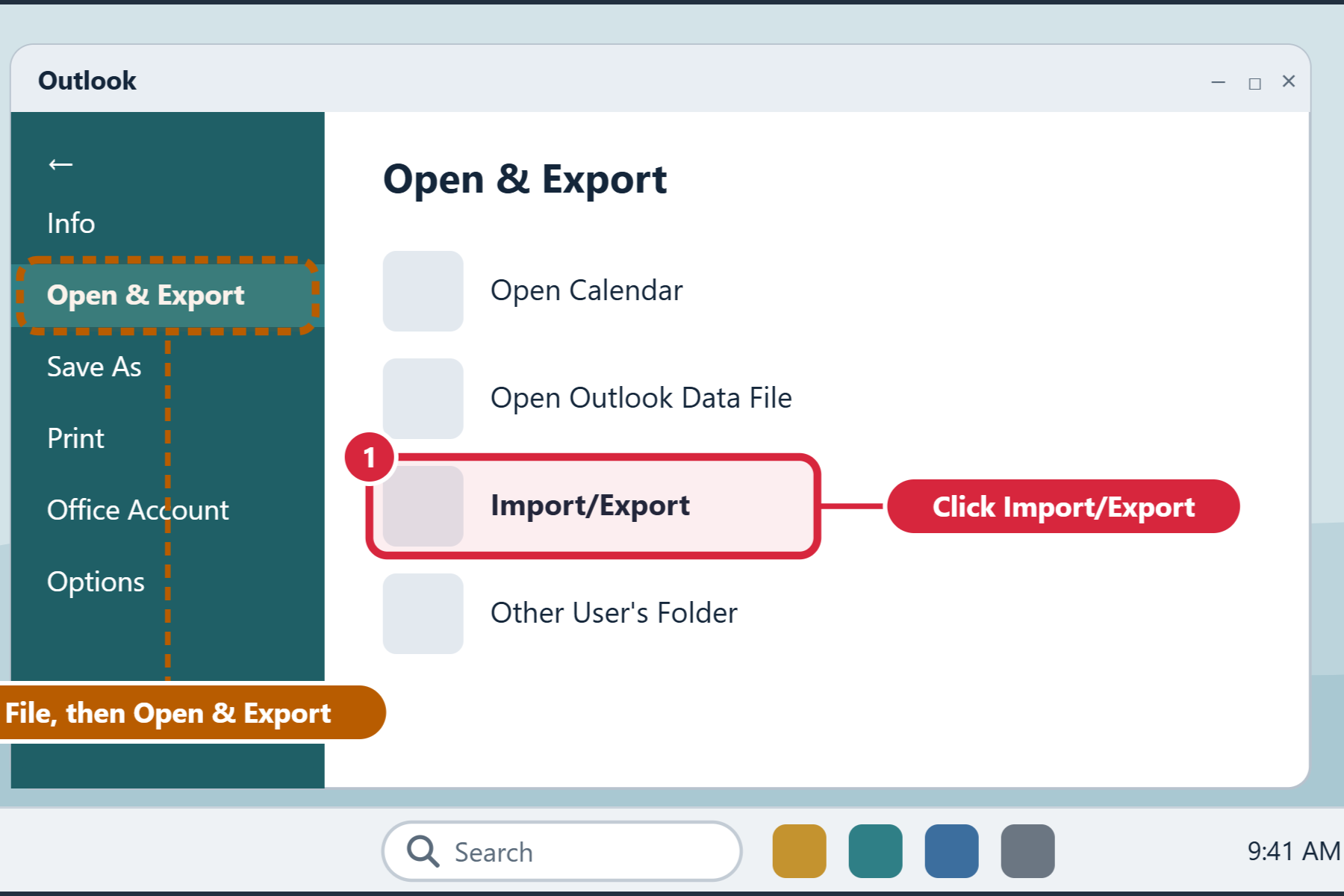
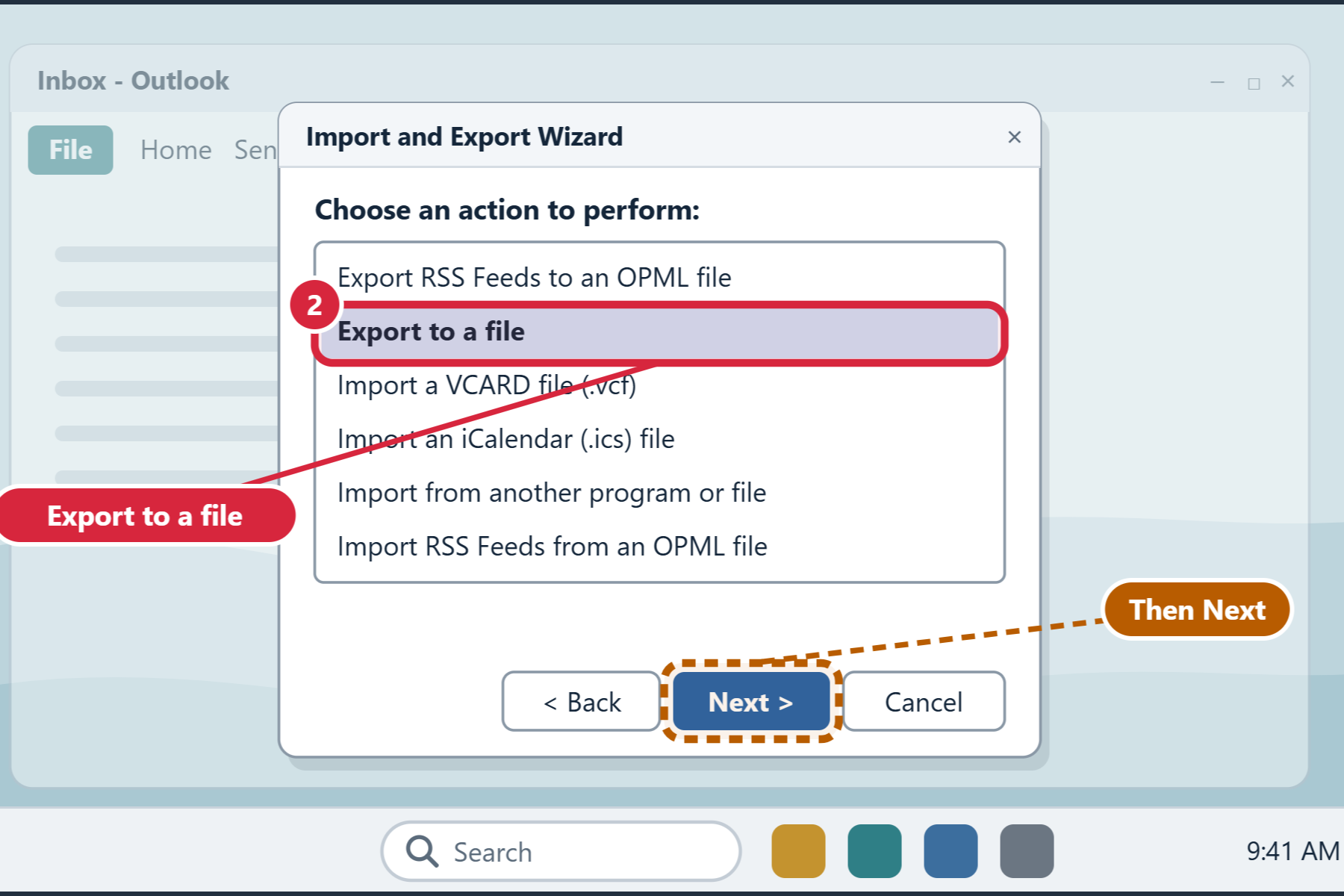
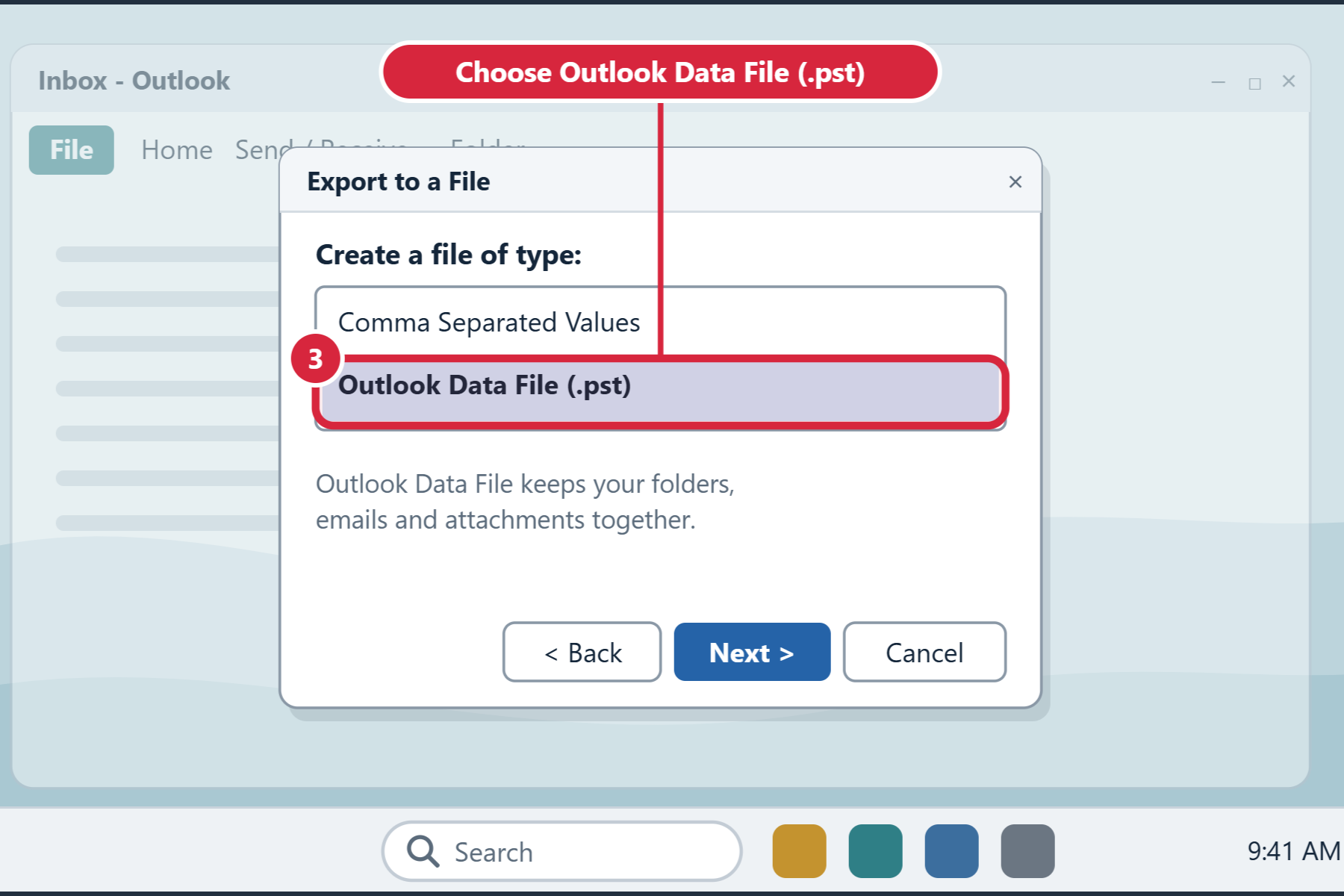
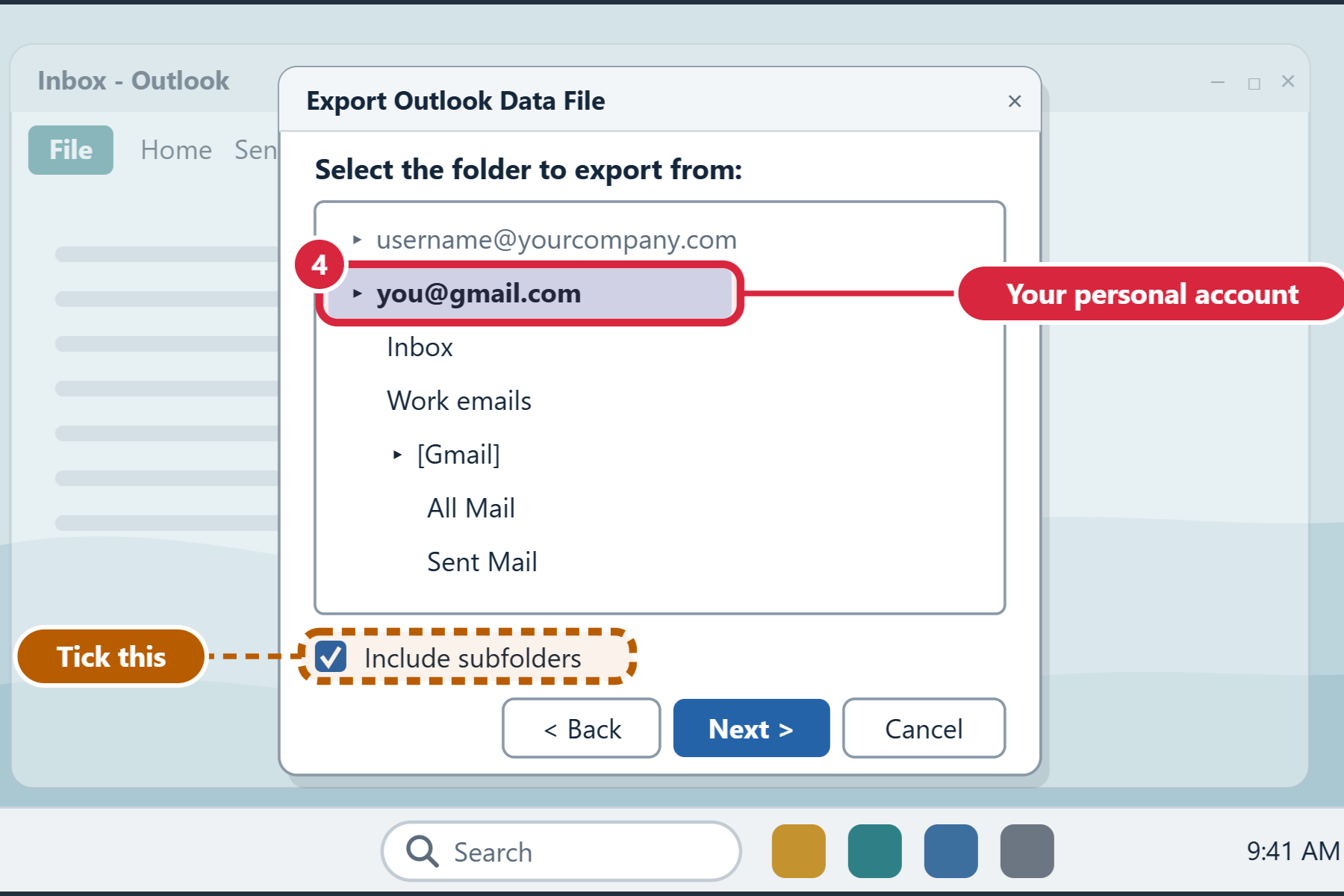
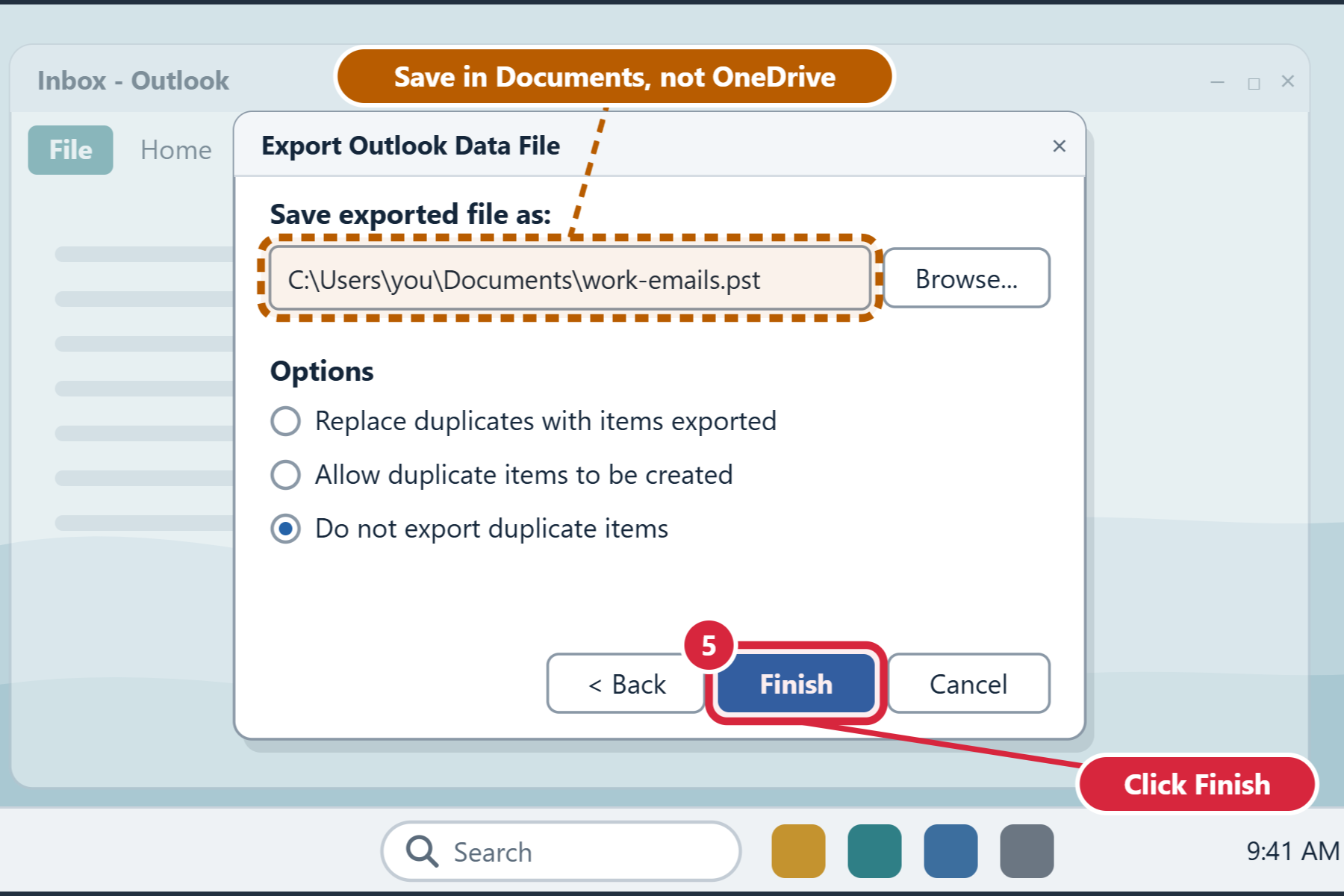
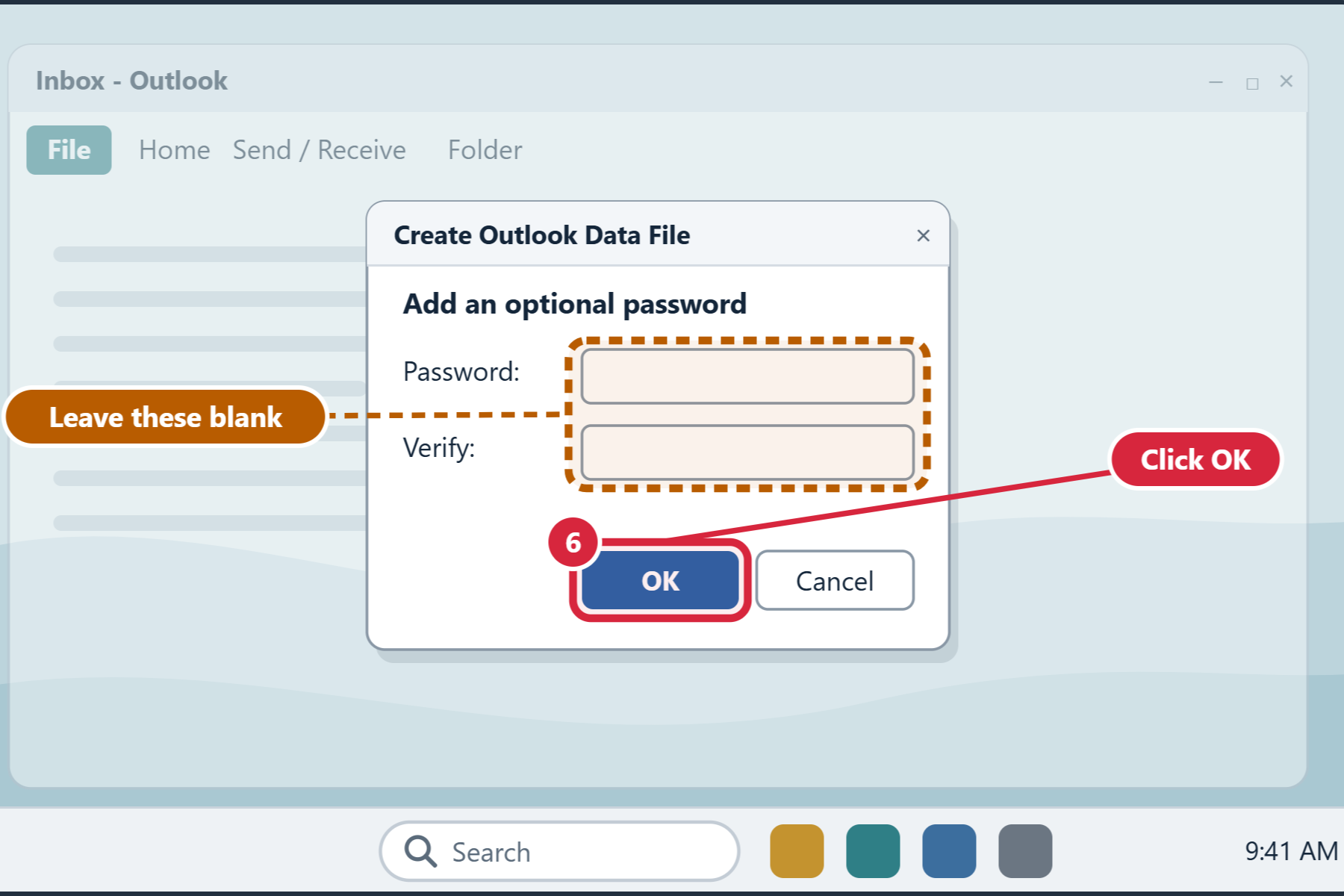
Use this only if your personal mailbox has been used just for work. You’ll export the whole mailbox to one file, called an Outlook data file (it ends in .pst), then import that file into your work mailbox. All folders and messages are copied, and your personal account keeps its own copy.
Drag and drop just the work emails. You pick what to move and leave your personal emails behind
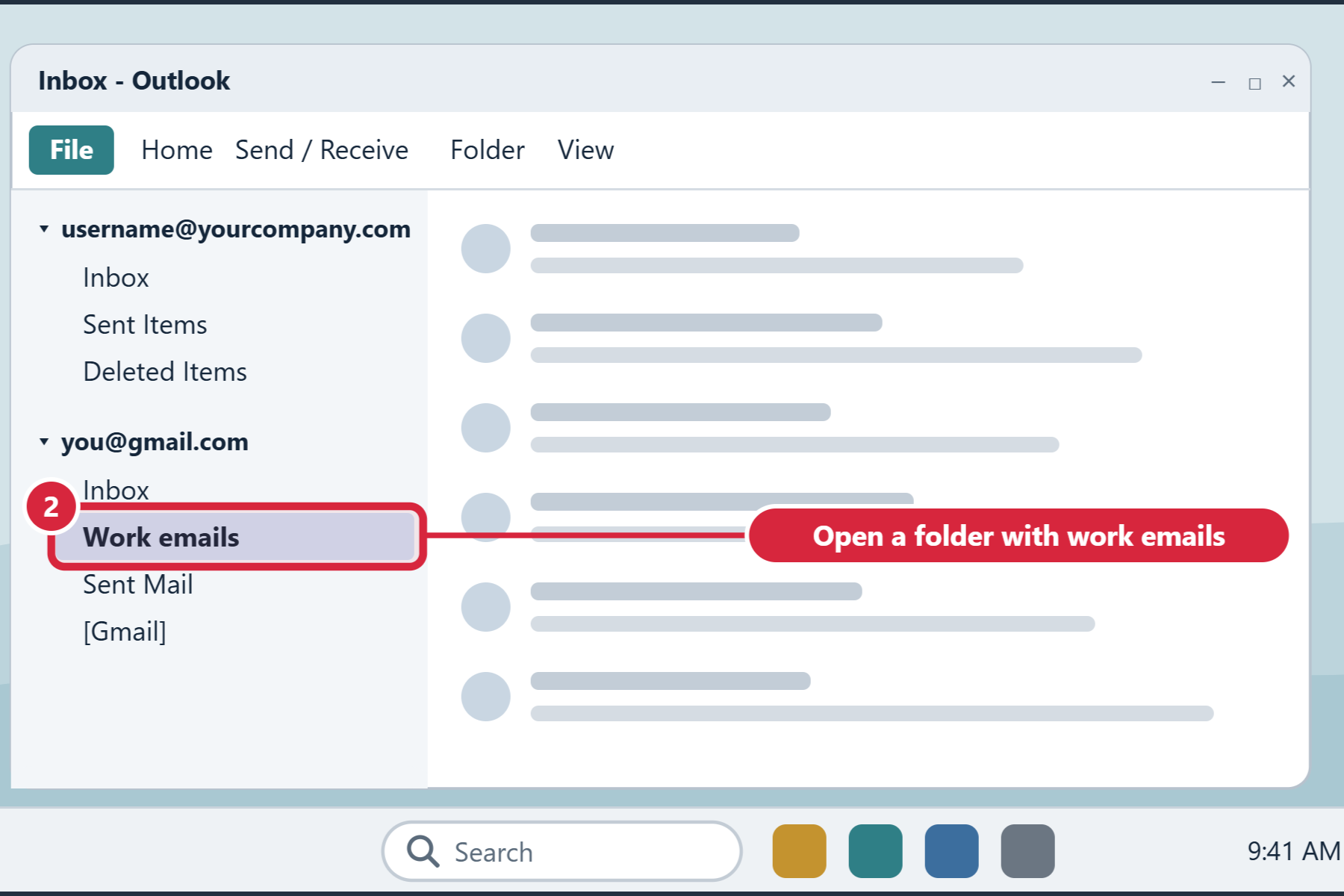
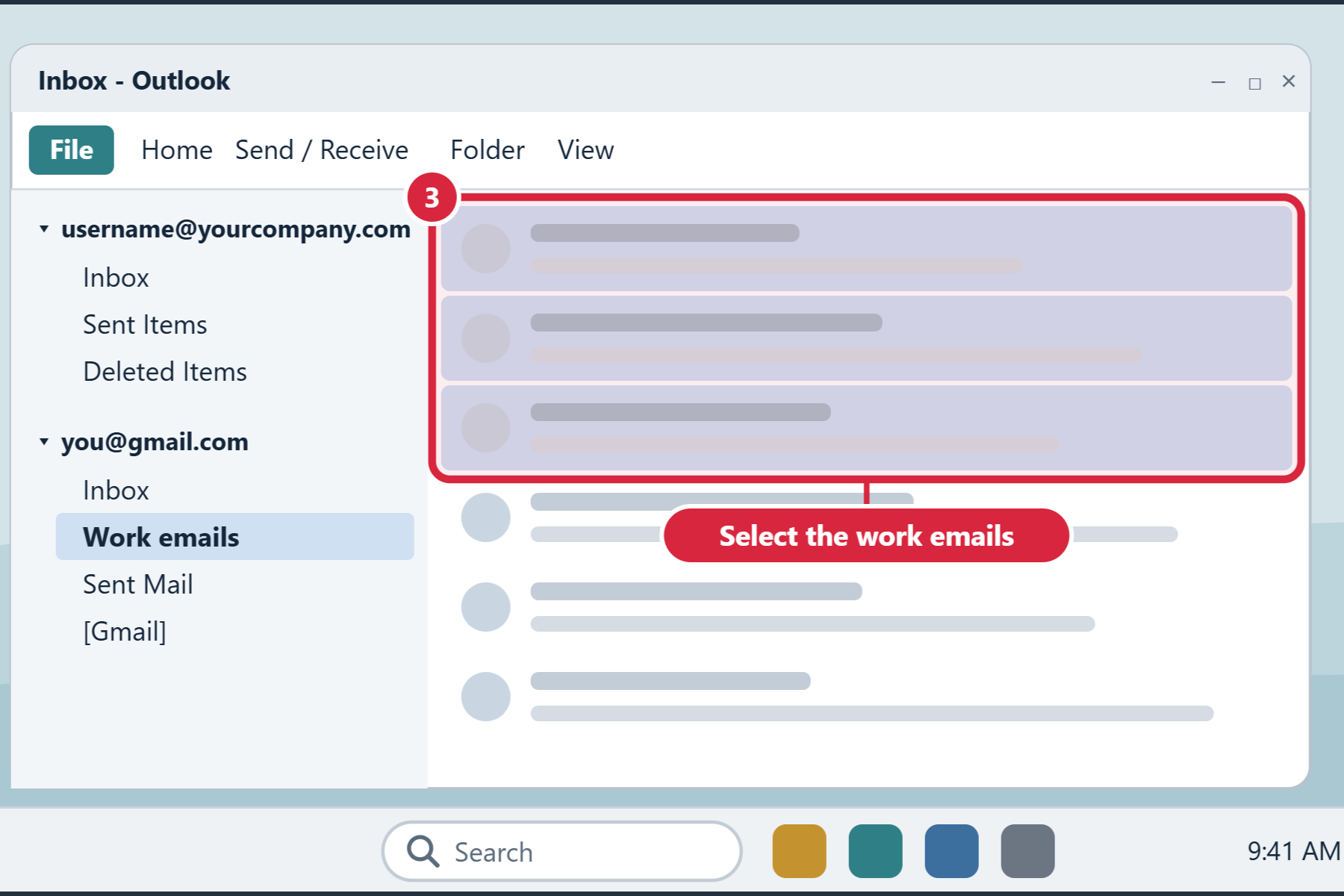
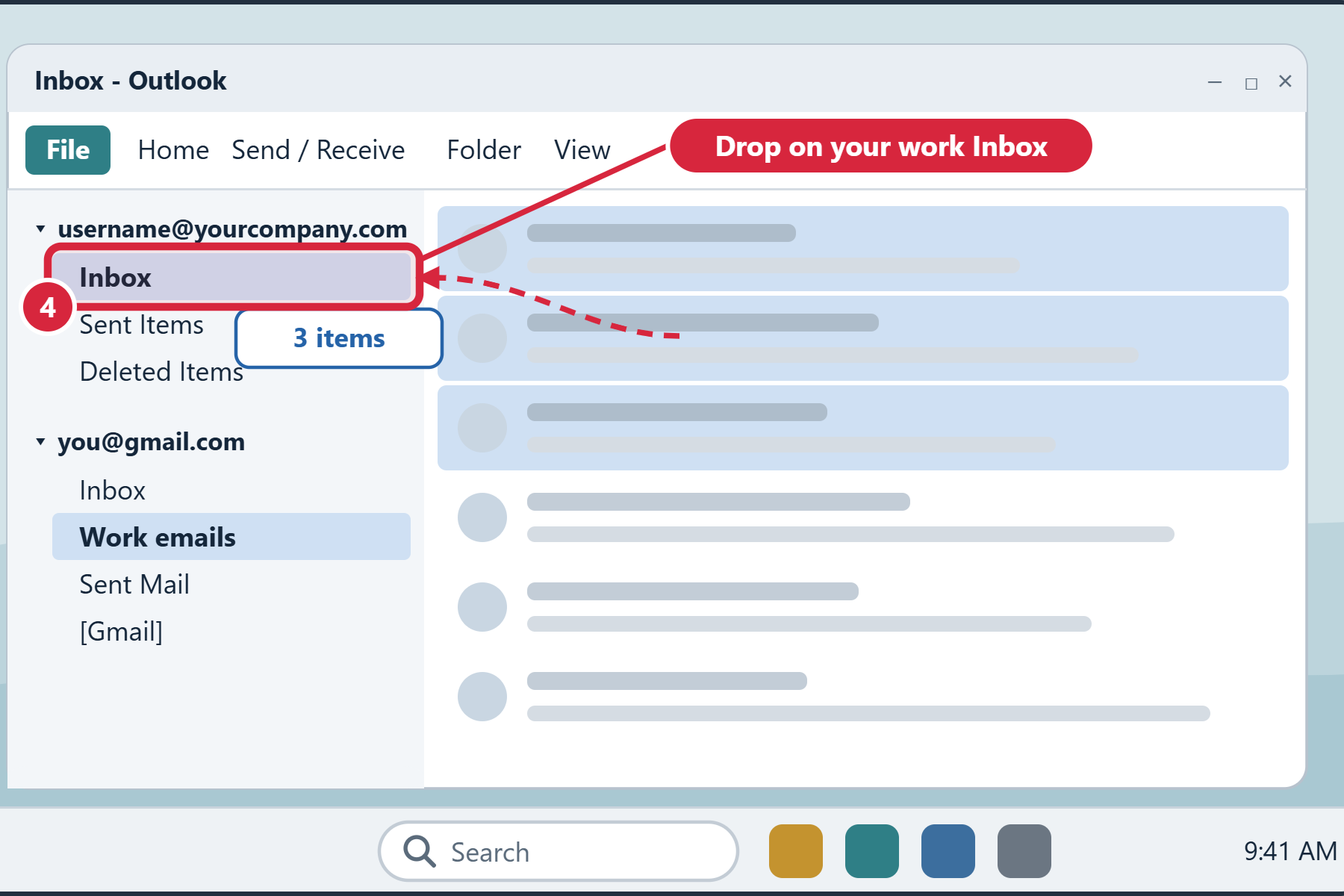
Option B: Outlook for Mac, or the new Outlook on Windows
Step 1: Add your personal account
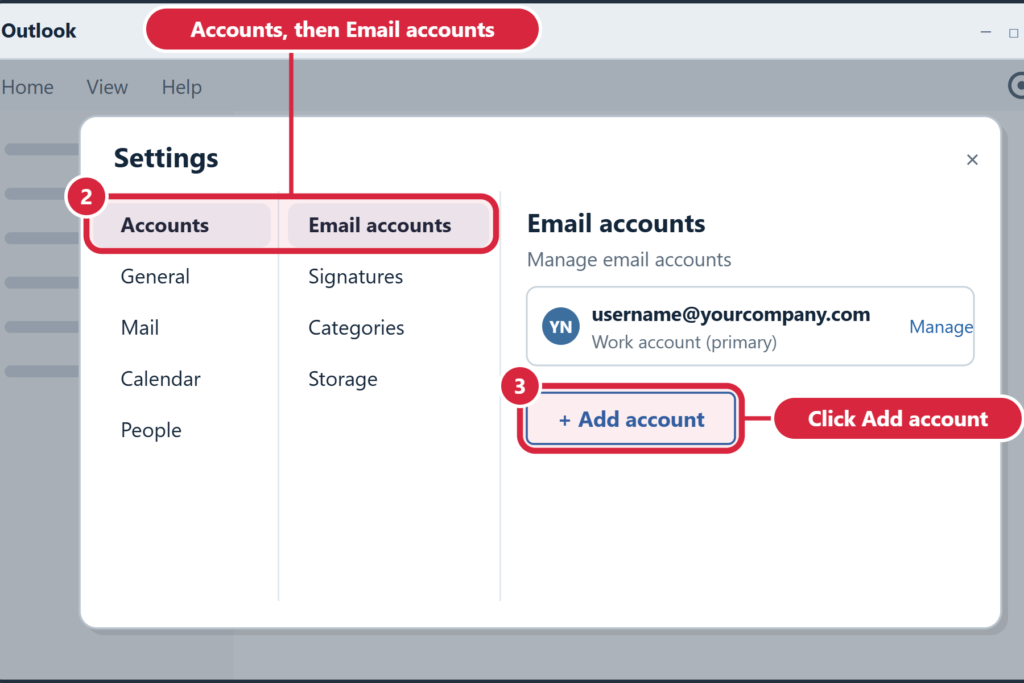
Step 2: Drag your work emails across
Next, move your work files into Microsoft 365. Knowing where they are, and where each one should go, makes the move quick.
Then copy your own files to OneDrive
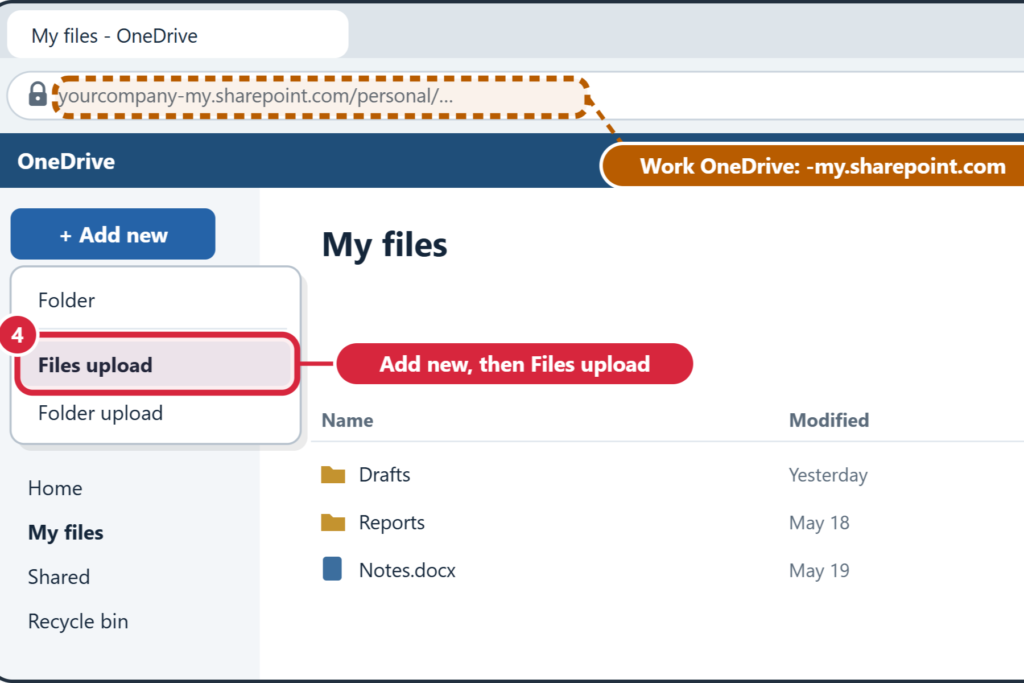
Use the OneDrive app if you can. It’s quicker for lots of files. If you can’t install the app, use your web browser instead.
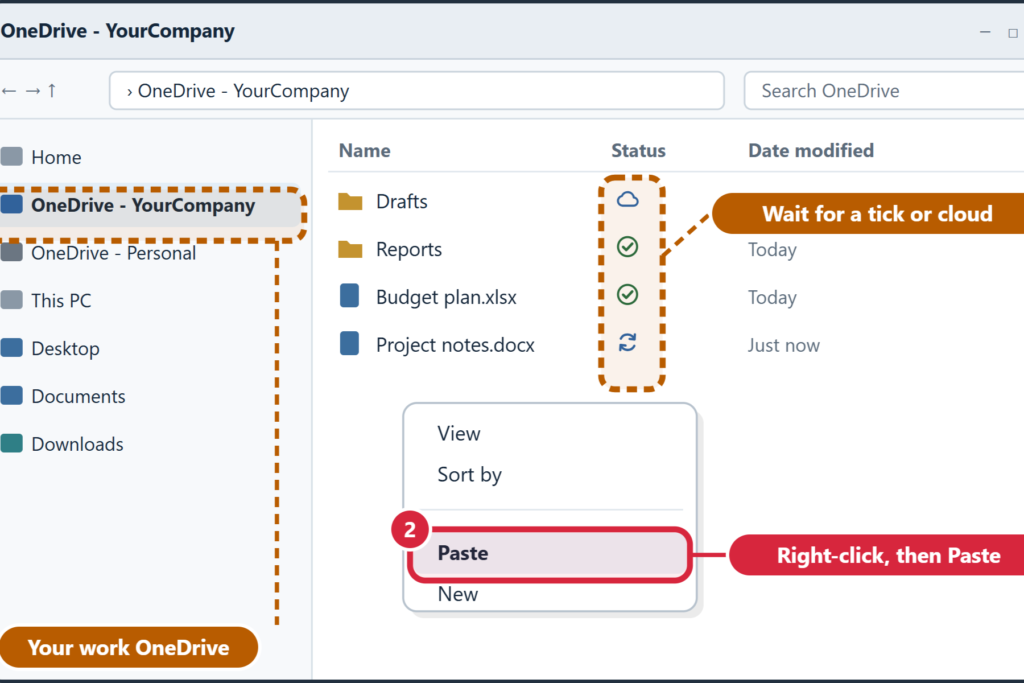
What the OneDrive Status icons mean

Two curved arrows: still uploading. Keep your computer on and connected until it changes.


Green tick (outline or solid): saved in Microsoft 365 and on this computer.

Blue cloud: saved in Microsoft 365. OneDrive downloads it when you open it. This is normal, and the file is safe.

Red circle with a cross: not uploaded yet. Click the OneDrive cloud icon near the clock to see why. If you can’t fix it, raise a request on the Help Center.
Need help?
Contact IT Services: raise a request on the Help Center.
The step pictures are simplified illustrations. Your screens may look slightly different depending on your device and app version.
Microsoft help: Download Microsoft Authenticator and Download and install Microsoft 365 apps.
For moving: Export emails to a .pst file, Import emails from a .pst file, Export your Outlook.com mailbox, Import Gmail to Outlook, Add an email account to Outlook for Mac, Add an email account to Outlook for Windows, Download OneDrive, Upload files to OneDrive and File storage in Microsoft Teams.